
Short answer: the Logitech C920x HD Pro is the best webcam for streaming in 2026, and it wins for a reason that has nothing to do with being the newest camera on the shelf. Twitch and YouTube compress and cap your outbound feed at 1080p, so a sharp 1080p sensor with dependable autofocus and good automatic exposure beats an expensive 4K body you never run at full resolution. Frame rate, focus reliability and how the camera holds up in your actual room light matter more than the number printed on the box.
I spent weeks putting twelve streaming webcams through the same routine: plugged straight into OBS Studio, recorded a clip at a desk, then repeated the test in a dim room with only a monitor for illumination. I checked autofocus while leaning and moving, looked for face warping at each field of view, and noted how each one handles a bright window behind the chair. Twelve picks cover everything from a first stream on a tight budget to a 4K desk rig with motorized tracking.
One honest answer before the list, because it comes up constantly on streaming forums: most established streamers do not use a webcam at all. A mirrorless body or DSLR pushed through an HDMI capture card usually produces a better picture than any webcam here. That said, a webcam is plug-and-play, takes up almost no desk space and costs a fraction as much, so for most people starting out the best webcams for streaming are still the right first purchase.
Two quick buying tips before the picks. First, Twitch and YouTube cap the feed at 1080p, so a 4K camera earns its money only when you crop and zoom into a face cam or record locally in 4K. Second, a cheap light does more for your picture than an expensive sensor in a dark room, and a webcam’s low-light rating only matters when your lighting is poor.
Table of Contents
Top 3 Best Streaming Webcams for 2026

Logitech C920x HD Pro
- 1080p at 30 fps
- 1/2.9 inch CMOS sensor
- 78 degree field of view
- Dual stereo mics

Logitech StreamCam
- 1080p at 60 fps
- Zoom lens with smart autofocus
- Auto-framing
- Foldable monitor mount

The Best Webcams for Streaming in 2026 at a Glance
Every pick below sits in a different corner of the market, so here they are side by side. The three that matter most for a first stream are the Logitech C920x HD Pro for reliability, the Logitech StreamCam for 60 fps motion, and the Insta360 Link 2 when you want 4K and motorized tracking in one box.
| Product | Specs | Action |
|---|---|---|
| Logitech C920x HD Pro |
|
Check Latest Price |
| Logitech StreamCam |
|
Check Latest Price |
 Insta360 Link 2 Insta360 Link 2 |
|
Check Latest Price |
 Elgato Facecam MK.2 Elgato Facecam MK.2 |
|
Check Latest Price |
 OBSBOT Meet 2 OBSBOT Meet 2 |
|
Check Latest Price |
 OBSBOT Tiny SE OBSBOT Tiny SE |
|
Check Latest Price |
| EMEET NOVA 4K |
|
Check Latest Price |
 EMEET S600 4K EMEET S600 4K |
|
Check Latest Price |
 NBPOWER 1080p60 NBPOWER 1080p60 |
|
Check Latest Price |
 Acer 4K Webcam Acer 4K Webcam |
|
Check Latest Price |
 Logitech Brio 101 Logitech Brio 101 |
|
Check Latest Price |
 AOC 4K Webcam AOC 4K Webcam |
|
Check Latest Price |
1. Logitech C920x HD Pro: Best Webcam for Streaming Overall
Logitech C920x HD Pro PC Webcam Full 1080p/30fps Video – Black
1080p at 30 fps
1/2.9 inch CMOS
78 degree FOV
Dual stereo mics
Pros
- Sharp 1080p with reliable autofocus
- Automatic lighting correction holds up in dim rooms
- Dual mics with clear stereo audio
- Compact and quick to mount
Cons
- No built-in privacy shutter
- Fixed 30 fps ceiling for fast motion
- No official Linux driver support
The C920x has been the default answer to “are there better modern options than a Logitech C920” for years, and threads on r/Twitch and r/streaming still treat this generation as the cheap-and-good baseline. That reputation is deserved. The picture is sharp at 1080p, the autofocus settles quickly, and the automatic lighting correction keeps a dim room usable without any manual work.
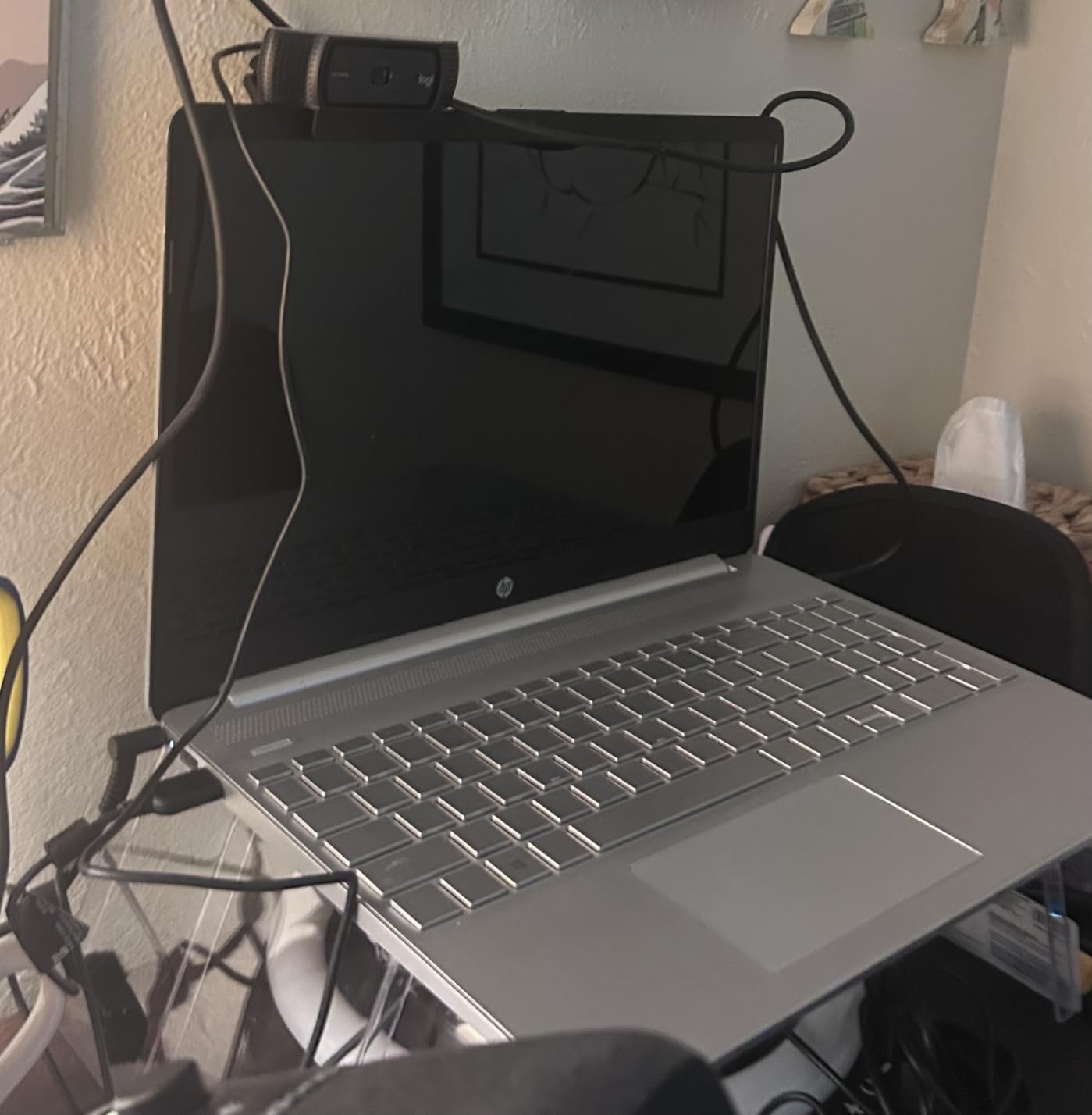
It is also the least fussy camera here. No companion app is required for basic use, no drivers to install, and the compact body clips onto a monitor or sits on the included stand without any balancing act on a thin laptop lid. For a first stream, that simplicity is worth more than a feature list.
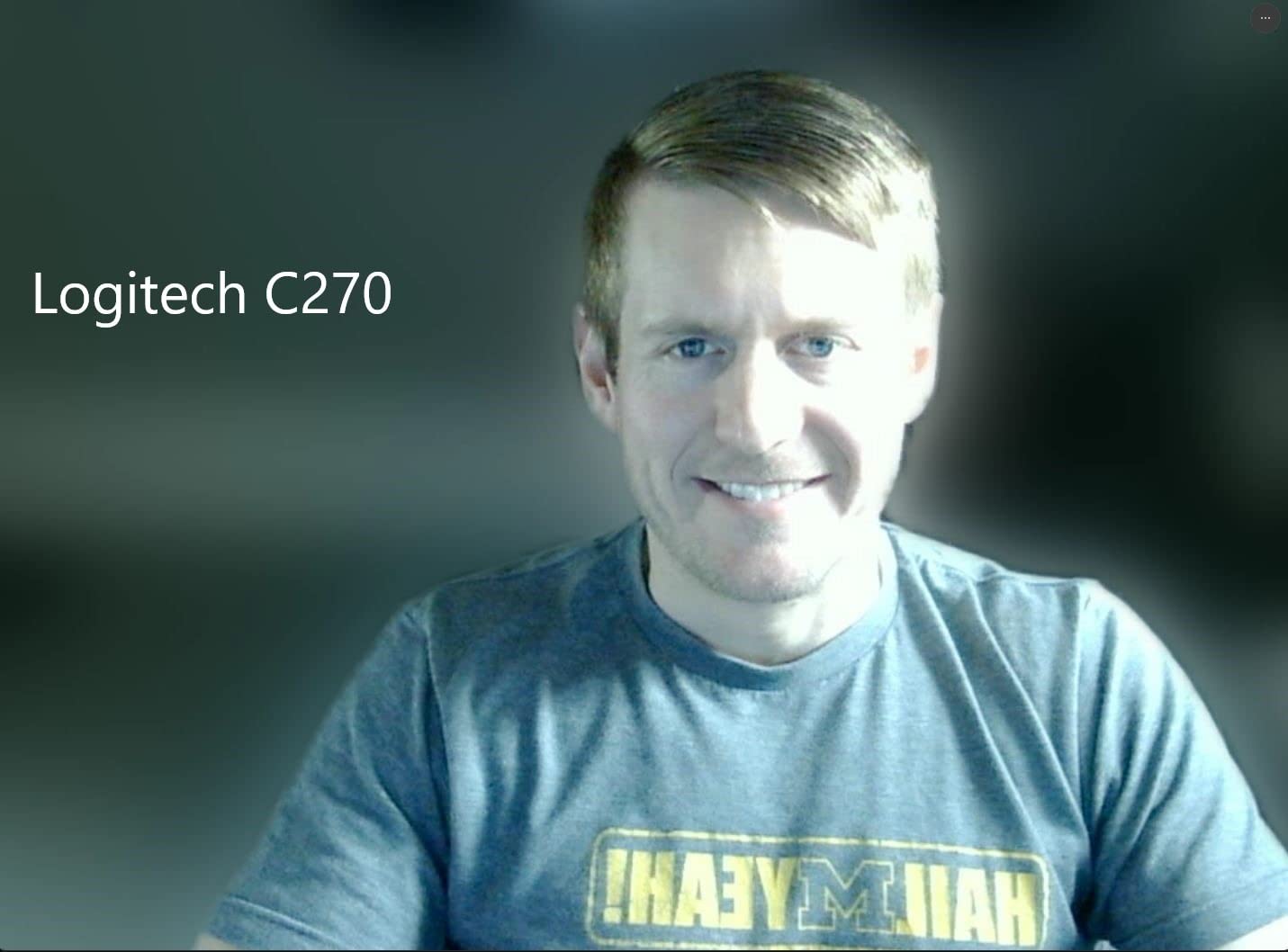
The honest limitation is the frame rate. At a fixed 30 fps, fast hand gestures and rapid head turns trail slightly, which is visible on a large face cam overlay but nearly invisible in a small corner box. If your stream leans on expressive hand movement during talking-head segments, note that ceiling before you commit.
The other gap is privacy. There is no sliding shutter on this model, so in a shared home office you need to unplug it or turn your monitor off when you step away. Logitech also provides no proper Linux driver support, which matters only if you stream from Linux rather than Windows or macOS.
Why the C920x suits a first stream
Nothing needs configuring before you go live, and the automatic exposure handles a room that changes brightness during an evening session. That predictability is what a camera running every night should give you.
The 78 degree field of view frames a seated streamer well without pulling in the whole room. That makes it a safe pick for small bedroom and apartment setups where a wider lens would show the clutter behind you.
When to skip it instead
Skip it if your content is movement-heavy, because 30 fps is the hard ceiling here. Skip it if you sit far back from the desk and want a tighter crop, since there is no optical zoom to pull your face larger in frame.
Skip it if you share a room and need a physical privacy shutter. The Facecam MK.2, the two EMEET models and the Logitech Brio 101 all include one.
2. Logitech StreamCam: Best Premium 1080p60 Streaming Webcam
Logitech StreamCam Premium Webcam for Streaming and Content Creation, Full HD 1080p 60 fps, Works with Microsoft Teams, Google Meet, Zoom, Nintendo Switch 2’s new GameChat mode, for PC/Mac – Graphite
1080p at 60 fps
Zoom lens
Auto-framing
USB-C
Pros
- Genuine 1080p60 for smooth motion
- Premium glass lens with smart autofocus
- Auto-framing keeps you centred
- Mounts on monitors or laptops
Cons
- Can wash out under artificial light
- Logitech Capture offers limited manual controls
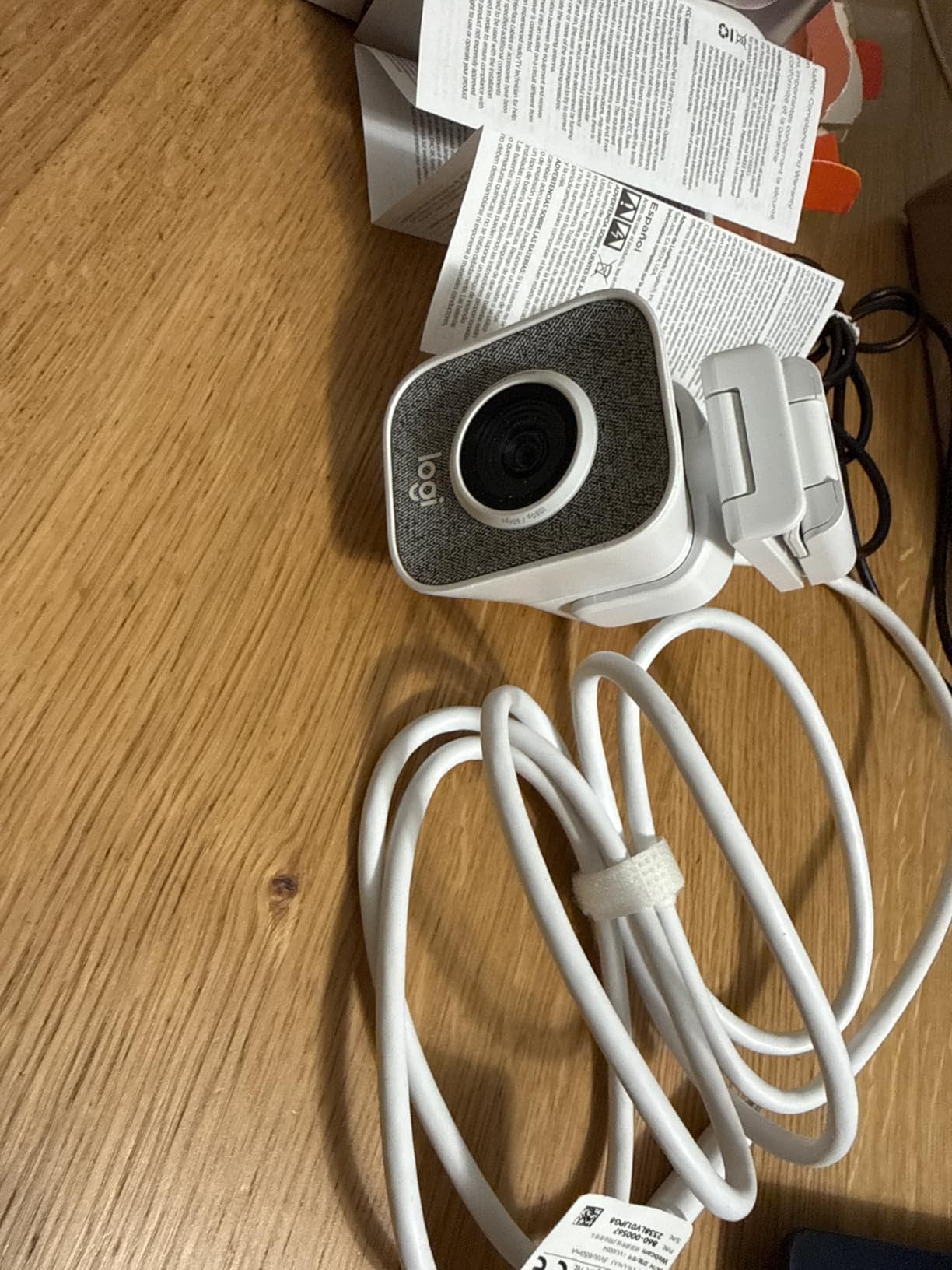
Where the C920x stops at 30 fps, the StreamCam doubles it. That 60 fps at 1080p is the single most useful upgrade for a streamer, because it is the mode both Twitch and YouTube accept at full quality, so no downscale sits between the sensor and your viewers.
Forum users repeatedly put the StreamCam in the same breath as the ObsBot Tiny as a genuinely good creator camera, and the reasoning holds up. The glass lens produces a clean, true-to-life image, and the auto-framing feature keeps you centred when you lean out of your chair mid-sentence.
The recurring complaint is exposure behaviour. Owners report the image washing out under artificial lighting and going too dark when that light is removed, which means you will spend more time on lighting setup than with the C920x. The intelligent exposure system tries to compensate, but it can overshoot.
The bundled Logitech Capture software is also lighter on manual controls than dedicated tools. There is no full manual exposure panel comparable to what Elgato offers, so if you like to dial in shutter speed and gain yourself, this is not the camera for that habit.
What you gain at 60 fps
Motion reads as smooth rather than stepped, which matters most in just-chatting streams where you gesture while talking. The higher rate also pairs better with a green screen or virtual background, since edge tracking has more frames to work with.
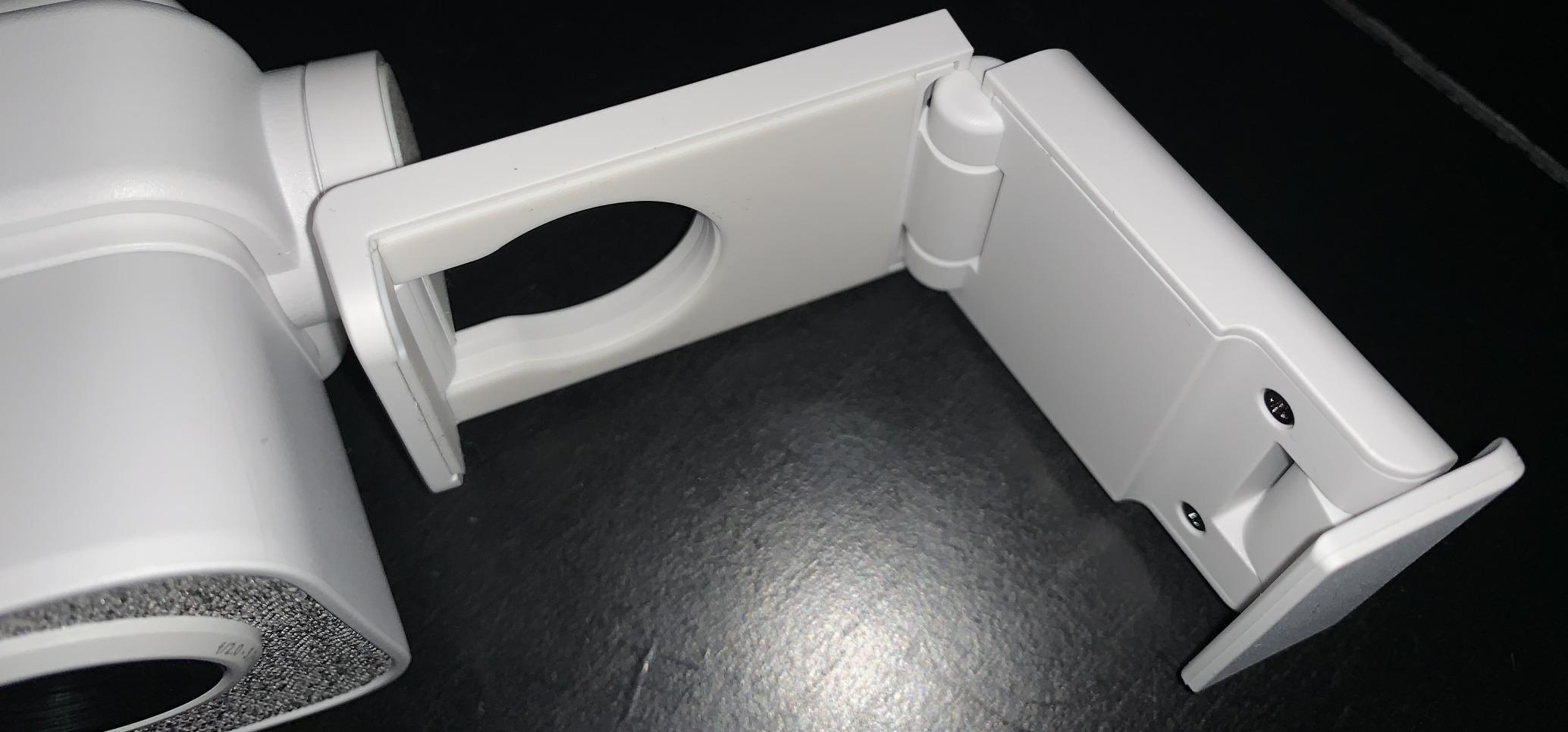
The foldable body mounts on a monitor, a laptop or a tripod, and the USB-C connection is recognised by OBS and Streamlabs without extra software, so it is a short setup before your first live scene.
Where it falls short
It is the wrong pick for a dim room with no added lighting, because the automatic exposure tends to brighten the whole frame and flatten your face. It is also the wrong pick if you want 4K for local recording or a heavy digital crop on a face cam.
If your budget is tight, the OBSBOT Tiny SE delivers 1080p at 100 fps for less, though without the glass lens or the auto-framing.
3. Insta360 Link 2: Best 4K Streaming Webcam With Motorized Tracking
Insta360 Link 2 – PTZ 4K Webcam for PC/Mac, 1/2″ Sensor, AI Tracking, HDR, AI Noise-Canceling Mic, Gesture Control for Streaming, Video Calls, Gaming, Works with Zoom, Teams, Twitch & More
4K from a 1/2 inch sensor
HDR
AI pan and tilt tracking
AI noise-canceling mic
Pros
- True 4K with HDR from a large sensor
- Motorized tracking pans and tilts to follow you
- Phase detection autofocus is near instant
- Natural bokeh effect
Cons
- Not compatible with ARM-based Windows
- No Windows Hello face recognition
- Advanced features need the Link Controller app
The Link 2 is the only camera here that physically moves to follow you. Its motorized pan and tilt AI tracking locks onto a face and re-aims the camera, which turns a static desk setup into something that looks actively produced without any operator. Combined with 4K capture from a 1/2 inch sensor and HDR, it is the most fully equipped streaming webcam in this list.
Image quality holds up in tough lighting. HDR keeps detail in a bright window behind you, and the large sensor stays clean longer into the evening than smaller sensors manage. The AI noise-canceling microphone also filters background noise better than the basic onboard mics on cheaper models.
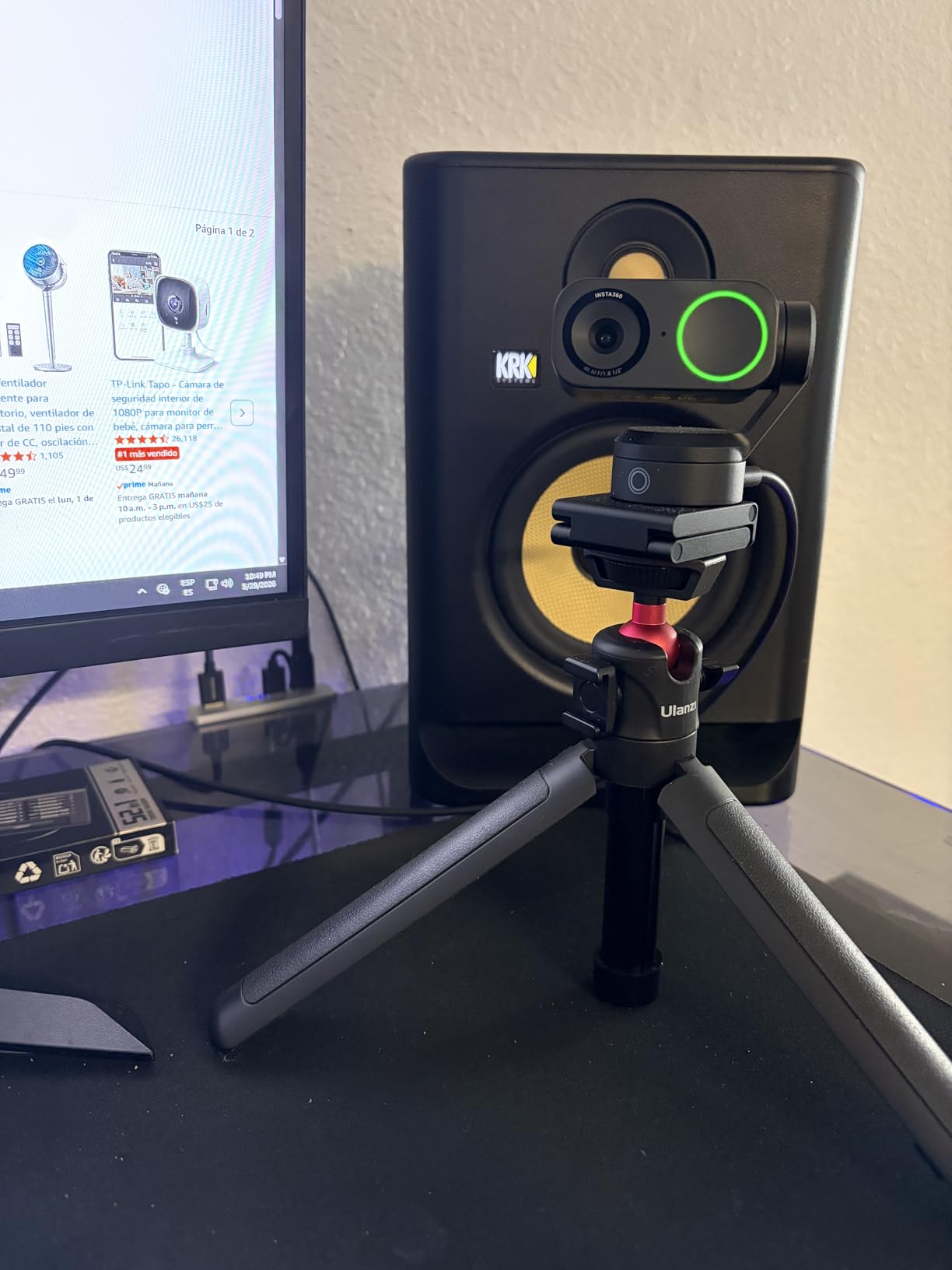
Phase detection autofocus is the quiet hero here. It snaps to focus almost instantly rather than hunting, so you can move freely without the picture going soft for a beat. For a streamer who leans, stands and gestures, that reliability is more visible to viewers than any resolution jump.
Two extras are worth knowing. DeskView and Whiteboard modes reframe the camera to suit a desk-top overhead angle or a whiteboard, and the natural bokeh effect softens the background so your face separates from a cluttered room.

Who benefits from 4K capture here
If you record locally in 4K while streaming at 1080p, you can crop tight face cam angles without the picture falling apart. That makes the Link 2 a strong choice for video-first creators who also stream, since the same camera covers both jobs.
Tracking also solves a problem most streamers hit: standing up to demo something at the monitor. Instead of stepping into frame awkwardly, the camera follows you across the desk.
The compatibility catch
It does not work on ARM-based Windows systems, and Windows Hello face recognition is unsupported, so it will not serve as a login camera. The tracking and control features also depend on the Insta360 Link Controller desktop software and the phone app, which is more moving parts than a pure UVC camera requires.
If you stream on Linux or an ARM machine, look at the Elgato Facecam MK.2 instead. It needs no app for core operation.
4. Elgato Facecam MK.2: Best Webcam for Manual Image Control
Elgato Facecam MK.2, Premium Full HD Webcam, HDR
1080p60 uncompressed
HDR at 1080p30
78 degree FOV
Sliding privacy shutter
Pros
- Natural skin tones and lifelike colour
- Strong low-light behaviour without mud
- HDR recovers detail in bright windows
- Camera Hub keeps settings across reboots
Cons
- No built-in microphone
- Stream Deck needed for quick on-camera changes
- Short USB cable with no USB-C end
The Facecam MK.2 is built for someone who wants to treat a stream like a camera rather than a video call. Elgato Camera Hub gives you full manual control over shutter, ISO and white balance, and crucially those settings survive a reboot, so you calibrate once instead of every session. Almost nothing else in the webcam category does that.
Reviewers describe the image quality as a genuine step up from the C920 and StreamCam tier. Skin tones look natural rather than pushed toward magenta or green, and the low-light performance avoids the muddy grey look that small sensors produce when the gain climbs.
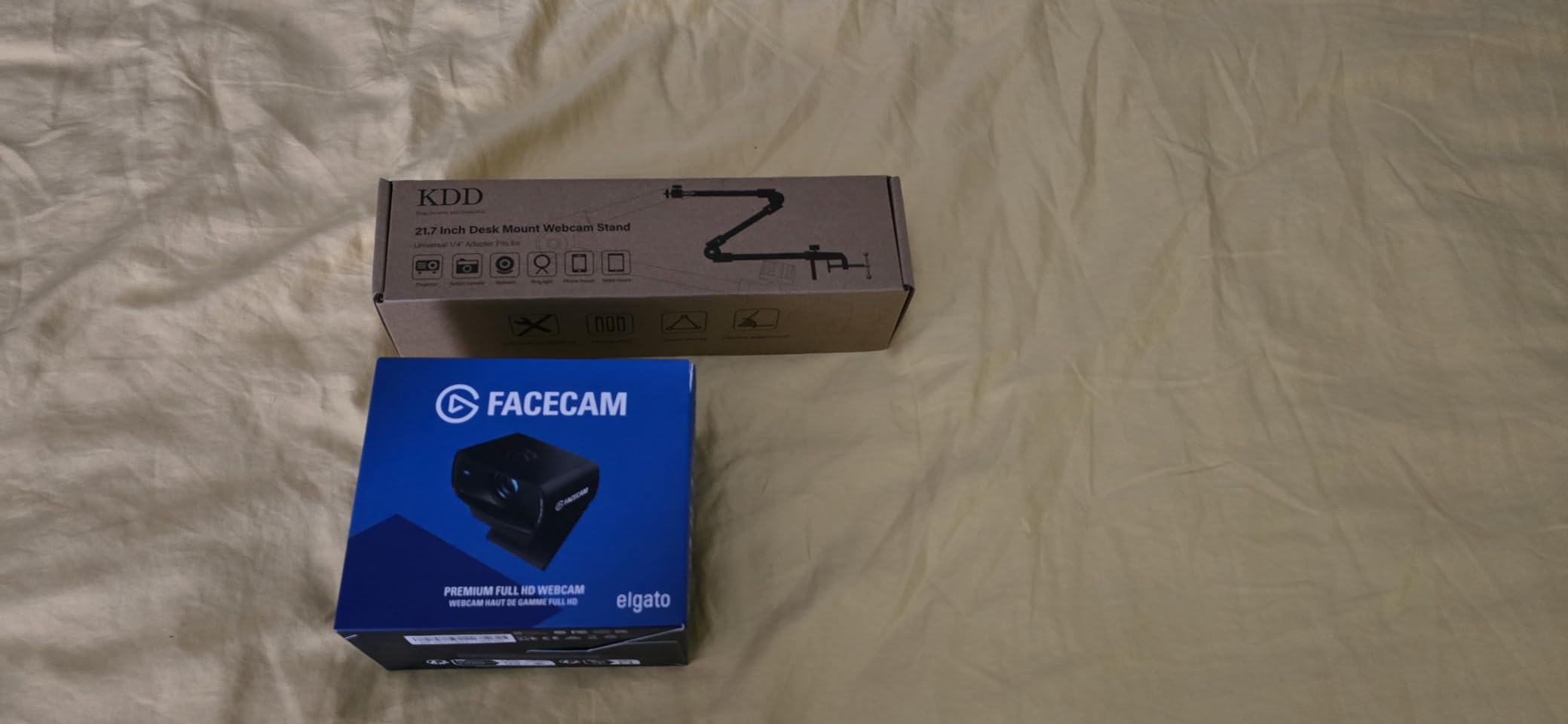
HDR is where it separates itself further. With a bright window behind your monitor, the camera holds detail in both the window and your face instead of blowing out one and crushing the other. It is a genuine advantage for daytime streaming in a room you cannot fully control.
Capture flexibility is good too. It works over USB 2.0 with MJPEG, and over USB 3.0 it supports uncompressed UVC up to 1080p60, which means no MJPEG compression artefacts in your recorded file.
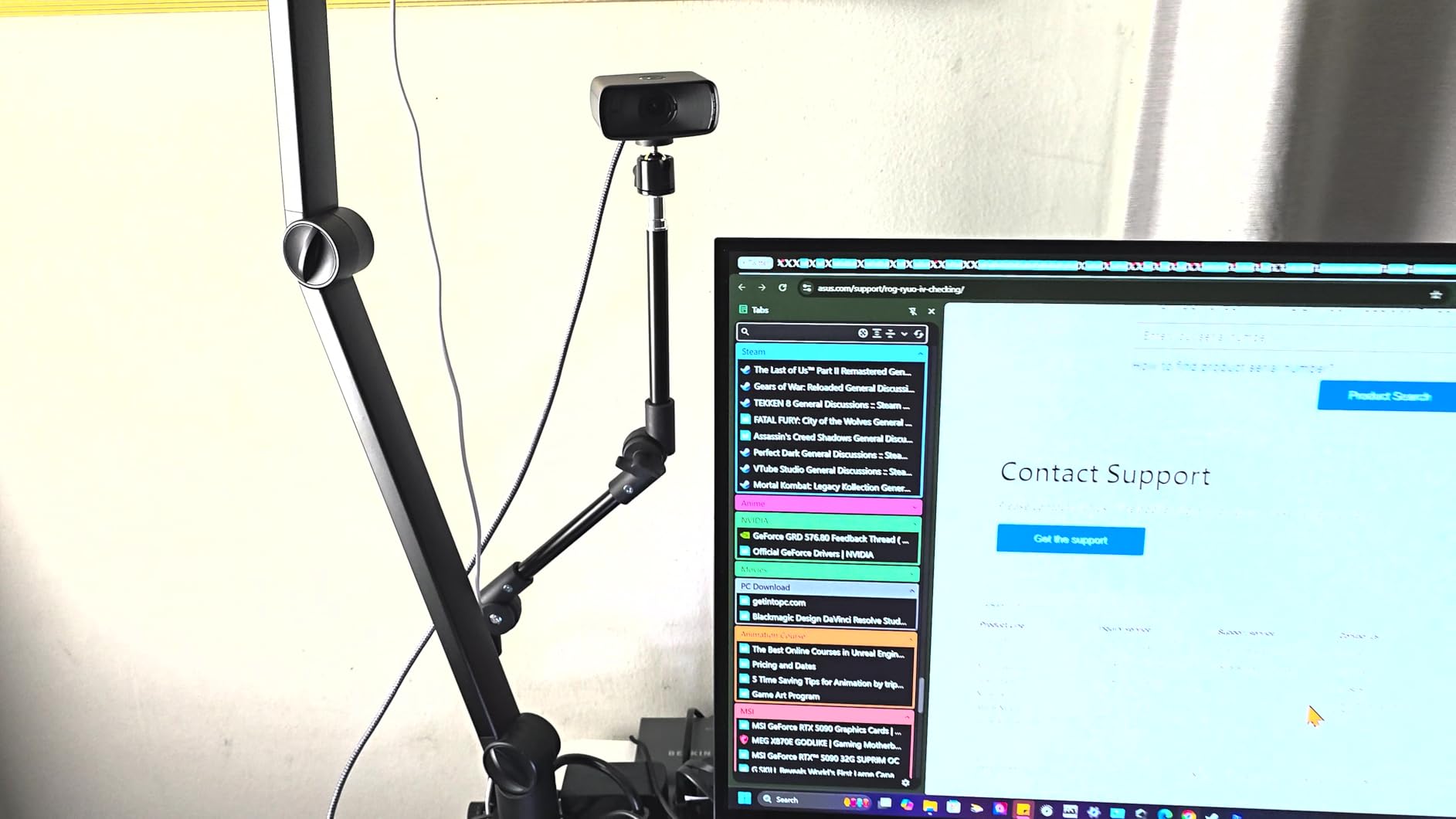
Why manual control changes the picture
Auto exposure reacts to whatever changes first, including a hand passing in front of the lens. Locked manual settings give you a consistent image across a whole stream, so your face does not brighten and darken every time you gesture.
The sliding privacy shutter is a physical cover over the lens, which matters if you share a home and want certainty rather than a software indicator.
What you give up for that control
There is no built-in microphone, so you need a separate mic for talking-head content. That is a deliberate choice rather than an oversight, and most streamers already run one.
Quick on-camera adjustments expect a Stream Deck or similar controller, and the included 2 m USB 3.0 cable is short and ends in USB-A, so a thin desk may need a different cable. Some units have also shipped with dead pixels, so check the image early.
5. OBSBOT Meet 2: Best Webcam for AI Framing on a Budget
OBSBOT Meet 2-4K Webcam for PC with 1/2″ Sensor, AI Framing & Autofocus
4K from a 1/2 inch sensor
AI framing and autofocus
40.5 g
Gesture control
Pros
- 4K from a large sensor at a mid-range price
- AI framing composes solo and group shots automatically
- Gesture control without touching the camera
- Weighs about 40 g
Cons
- Runs warm during long sessions
- Fixed lens with no manual tilt
- Advanced settings need OBSBOT Center
The Meet 2 puts a 1/2 inch sensor and 4K capture into a body roughly the size of a pair of earbuds, which is unusual at this price. The picture is clear and bright for the size, and the single USB-C cable means true plug-and-play with no drivers on the way to your first stream.
What makes it interesting for streaming is AI framing. The camera composes the shot automatically, whether you are alone at a desk or sharing a space, and it adjusts when you move closer or sit back. For a creator who does not want to reframe a scene after every position change, that removes a real chore.
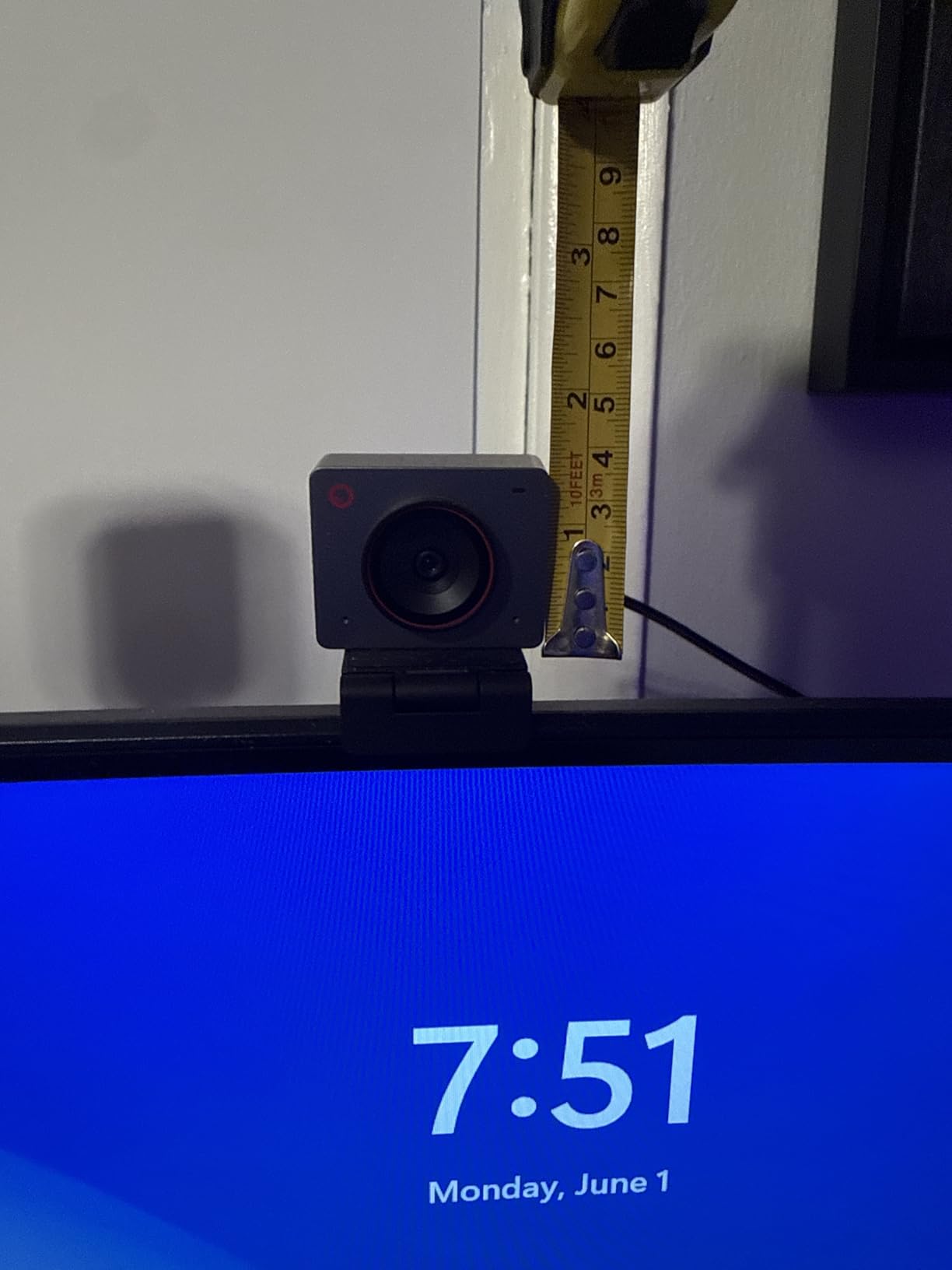
Gesture control is a genuine convenience during a live broadcast. An open palm toggles AI framing and an index finger controls zoom, so you can adjust the shot mid-sentence without touching the camera or your keyboard. Autofocus is handled by the same AI system and holds on a moving subject.
The dual omnidirectional noise-canceling microphones are clear enough for talking-head segments, though most streamers still add a dedicated mic for audio quality.
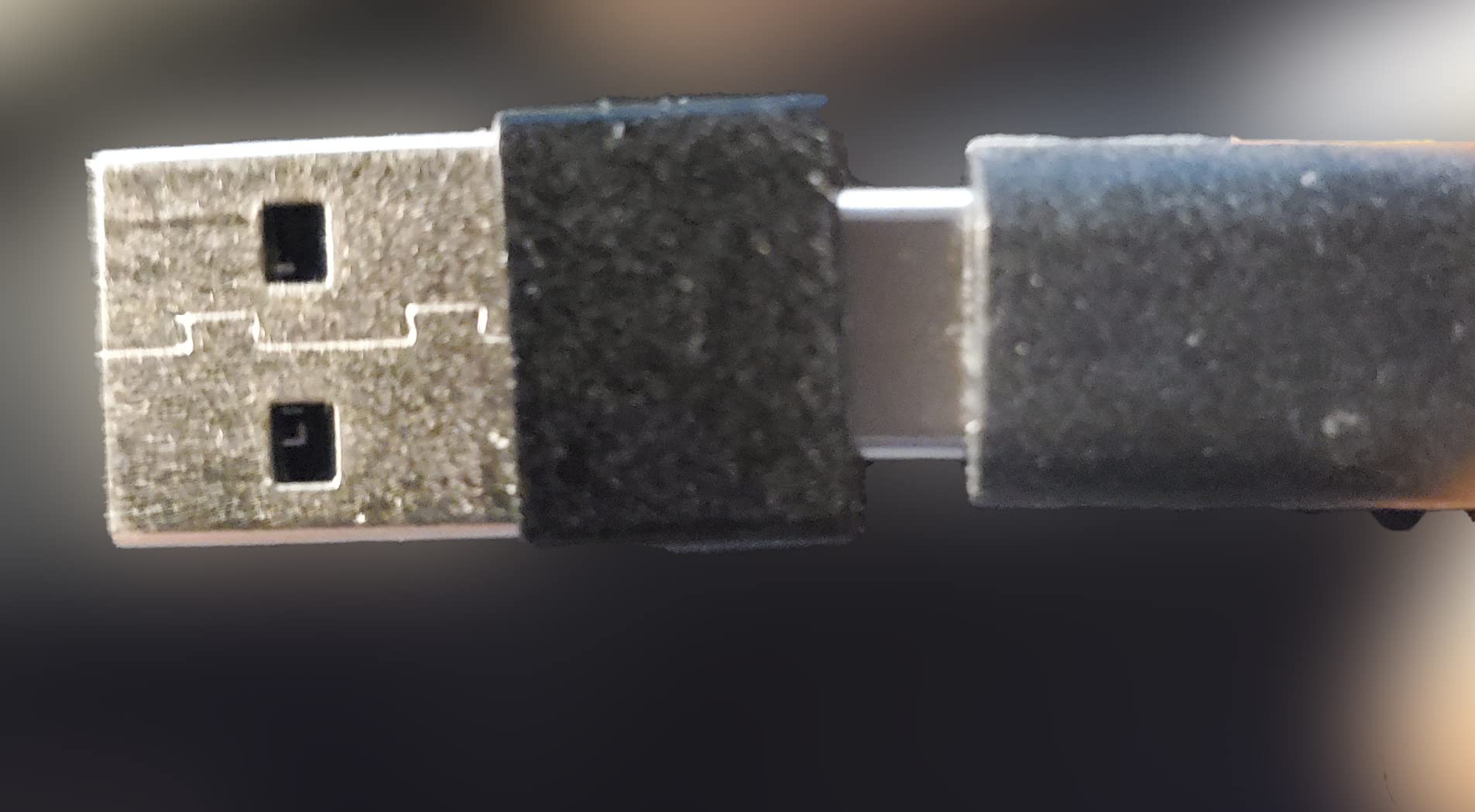
Good for compact setups
At 40.5 g, this is one of the smallest cameras here, and several of the bulkier 4K and gimbal models are awkward in a bedroom or small apartment desk. Here it disappears, which matters in a dense setup where every centimetre of monitor edge counts.
The framing automation also handles the case where you sit back from the desk, which fixed-focus cameras force you to solve by mounting further away.
Where it struggles
The unit runs warm during extended use, which OBSBOT states is normal for the hardware, so it is worth knowing if you run it in a poorly ventilated room for eight hours a day.
The lens is fixed, with no physical tilt or manual framing adjustment, so getting the angle right is entirely down to where you place it. Deeper settings live in the OBSBOT Center desktop software.
6. OBSBOT Tiny SE: Best Webcam for High Frame Rate Capture
OBSBOT Tiny SE 1080P 100FPS Webcam for PC, AI Tracking PTZ Streaming Camera
1080p at 100 fps
1/2.8 inch stacked CMOS
Dual native ISO
Gesture control
Pros
- 1080p100 and 720p150 are far smoother than rivals
- Stacked sensor with dual native ISO handles low light
- Zone and body-part AI tracking
- Custom presets with per-preset settings
Cons
- 1080p only with no 4K mode
- Runs warm under sustained high frame rates
Frame rate is the whole argument for this camera. It captures 1080p at 100 fps and 720p at 150 fps, a frame rate range no other camera in this list reaches. If you record slow-motion inserts, test animations on stream, or simply want the option to drop frames in post, that headroom is hard to get elsewhere.
The stacked 1/2.8 inch CMOS sensor uses dual native ISO with 2.9 micron pixels and staggered HDR, which is why it holds image quality better in low light than the sensor size alone would suggest. Reviewers credit the sensor choice for clean output in dim rooms.
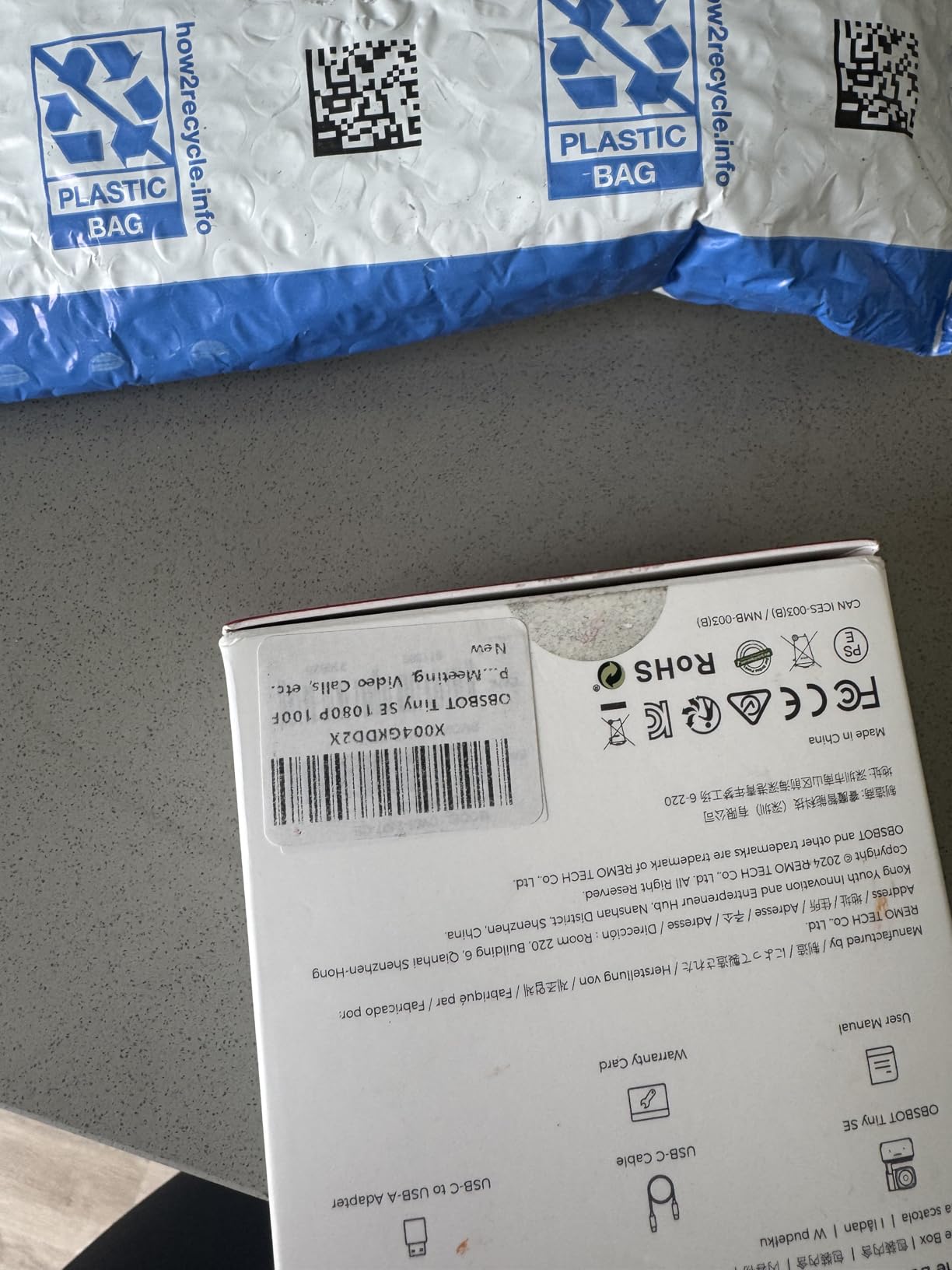
Tracking is deeper than a simple face follow. Zone tracking locks the camera to a defined area, body-part tracking aims at a specific part of you, and presets can each carry their own parameters and tracking mode. That makes it easy to jump between a tight face cam and a wider desk view mid-stream.
It also plays well with automation. Stream Deck support, global hotkeys, OSC control and API access mean the framing changes can be triggered from your existing stream deck rather than by hand.
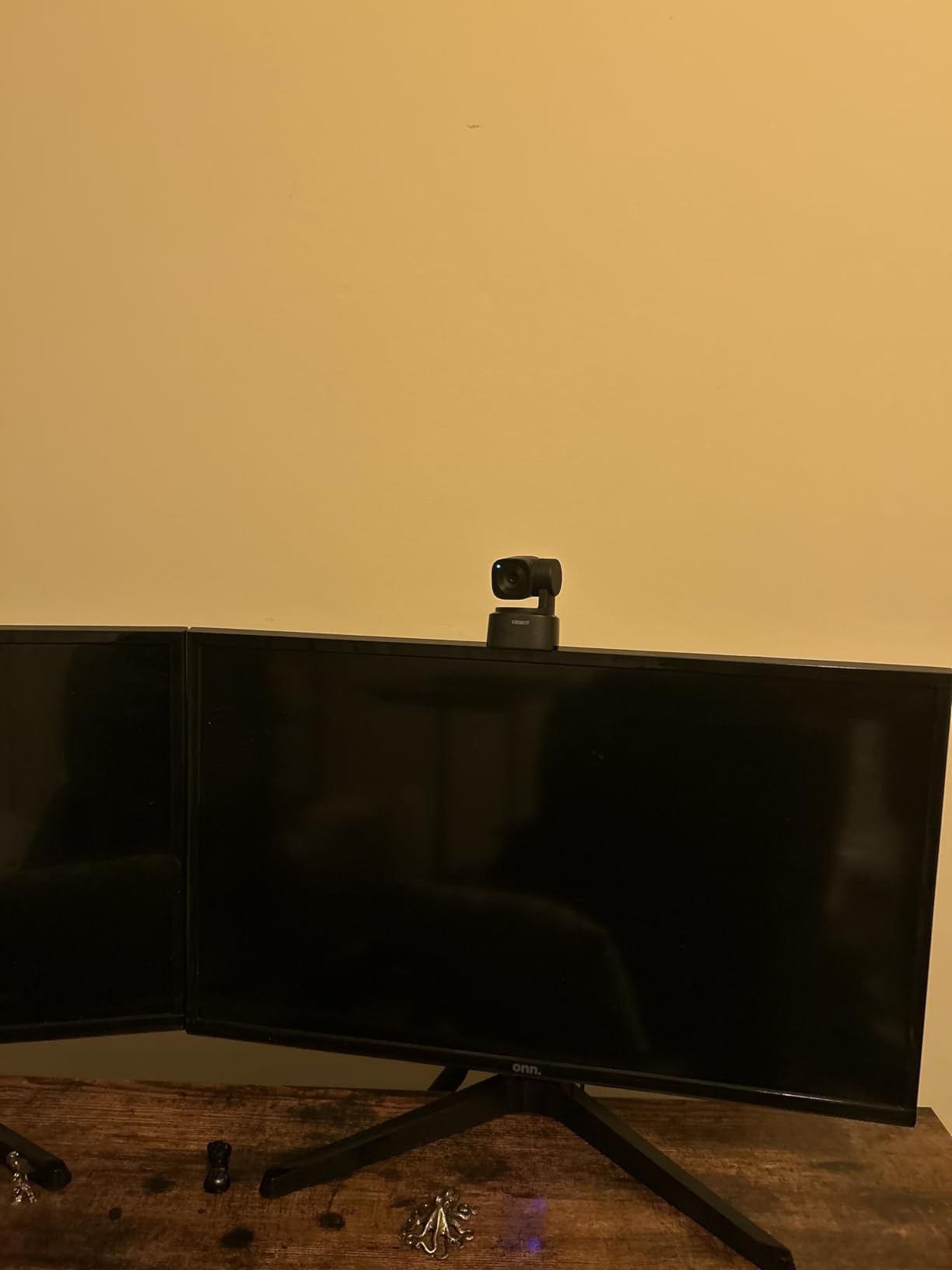
Where high frame rate pays off
The gap between 30 fps and 60 fps is obvious on a large face cam. The gap between 60 fps and 100 fps is subtler to viewers but useful to you, because slow-motion footage for highlights and video chapters becomes possible from a single capture device.
Screen orientation is handled automatically, so the image stays upright whether the camera is mounted in landscape, portrait or upside-down under a monitor.
What you accept for the speed
There is no 4K mode. If you want to record locally in 4K and crop a face cam, this is the wrong camera, and the Insta360 Link 2 or either EMEET 4K model will suit you instead.
Like the Meet 2, it runs warm during sustained high frame rate capture. For an eight-hour broadcast that is fine in a normal room, but it is a factor in a sealed booth.
7. EMEET NOVA 4K: Best Value 4K Streaming Webcam
EMEET NOVA 4K Webcam for PC, Ultra 4K HD, PDAF Autofocus, Dual Omni Mics
4K at 30 fps
PDAF autofocus
73 degree FOV
Dual omni mics
Pros
- Genuine 4K detail at an entry price
- Fast PDAF autofocus that rarely hunts
- 73 degree field frames a desk well
- Integrated physical privacy cover
Cons
- Defaults to 1080p so 4K must be selected manually
- Exposure washes out near strong light
- Focus range is limited with no manual focus
The NOVA delivers real 4K detail at a price that sits with mid-range 1080p cameras, which is why it is the value pick in this list.
The picture holds up with natural colour in ordinary room light rather than the grey cast many budget sensors produce. PDAF autofocus is fast and stable in a way that is unusual at this price.
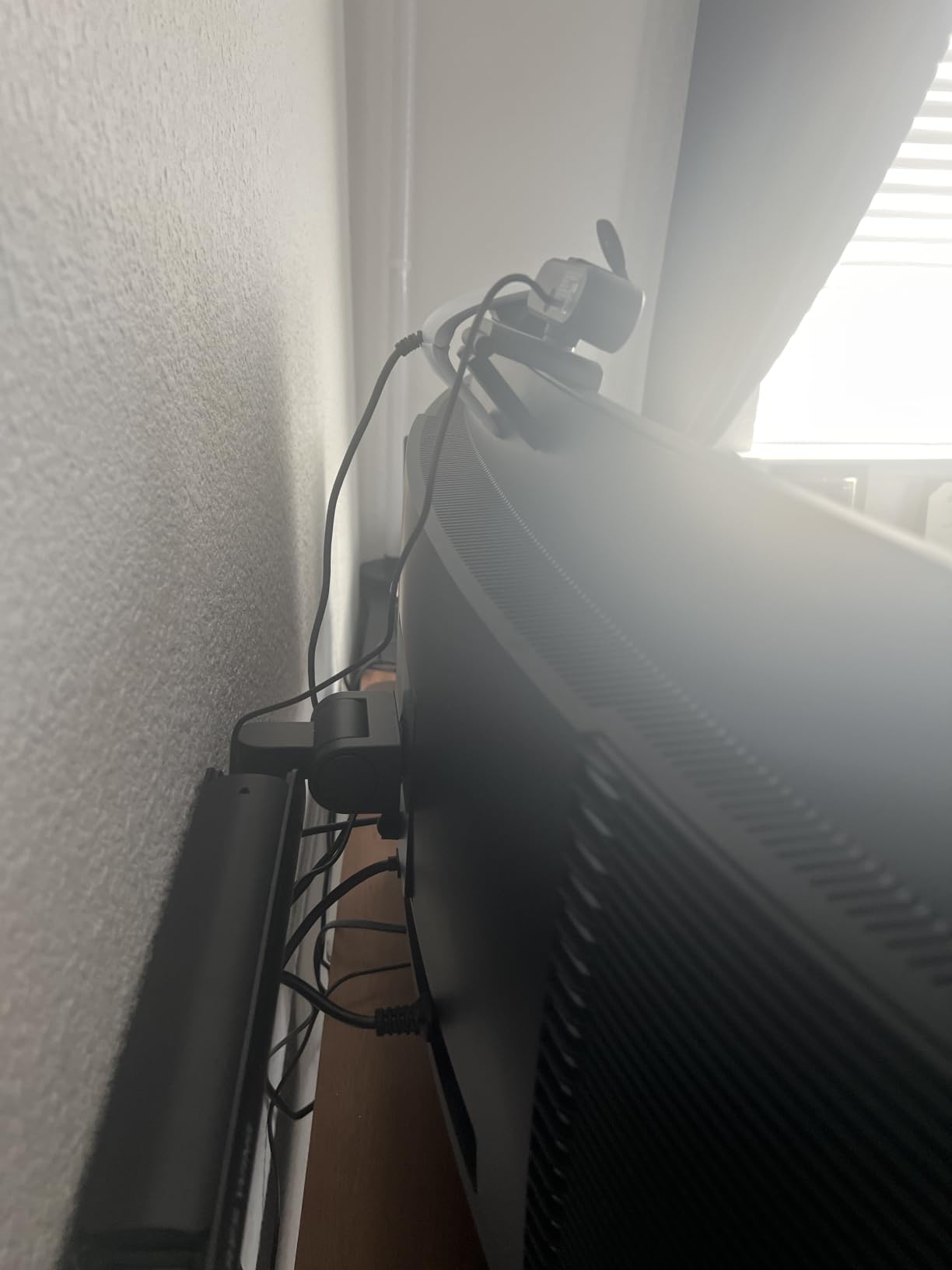
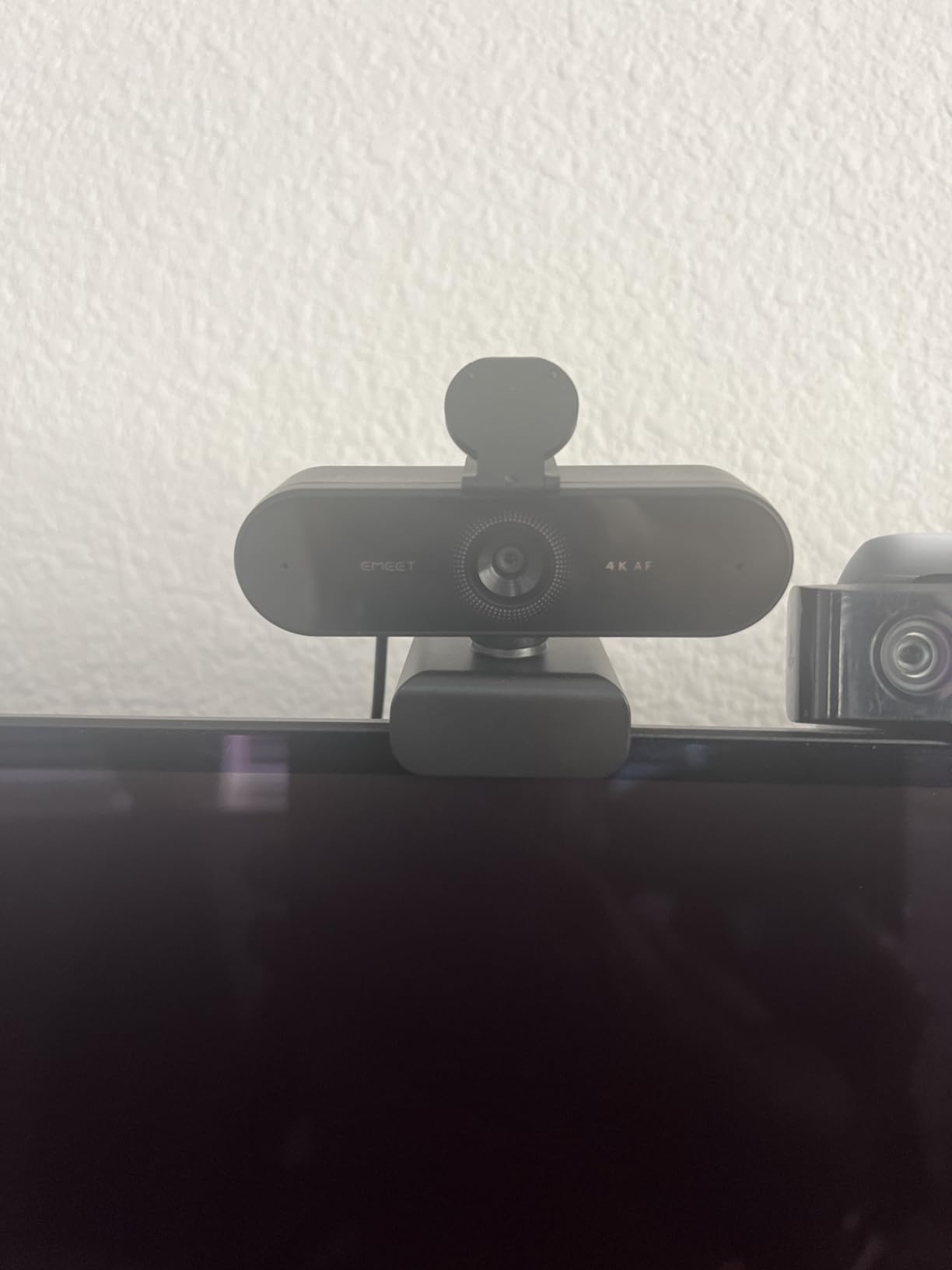
The mount is unusually flexible for a budget camera: 360 degree swivel, 15 degree vertical tilt, a 180 degree adjustable stand and a 1/4 inch tripod thread. That means it works on a monitor, on a desk riser or on a tripod without buying extra hardware, and it is wired-only with no WiFi or Bluetooth to configure.
The built-in microphones pick up voice clearly at normal desk distance, and the physical privacy cover on the lens closes over the sensor when you are not streaming.
Why 4K matters even at a 1080p cap
Recording locally in 4K gives you room to crop. A 4K frame scaled down to a 1080p stream holds noticeably more detail than a 1080p camera scaled down, particularly on a tight face cam where the frame is filled with your head and shoulders.
It also means you can switch between a wide desk shot and a close crop without changing cameras.
The setup friction to expect
The camera defaults to 1080p output. You need to select 4K in the bundled software or in your capture app, which is a small annoyance every time you reconnect.
Exposure is the other limitation: strong window light or a lamp beside the camera washes the image out. The PDAF focus range is 7.9 to 118 inches and there is no manual focus, so a very close or very distant seat can fall outside it. On older Windows 10 machines or low-bandwidth USB hubs you may need the EMEET software installed before the camera is recognised at all.
8. EMEET S600: Best Webcam for 4K Detail and 1080p60 Flexibility
EMEET S600 4K Webcam for Streaming, Sony 1/2.55” Sensor, PDAF Autofocus
Sony 1/2.55 inch sensor
4K30 or 1080p60
PDAF autofocus
40-73 degree FOV
Pros
- Sony sensor gives crisp detailed 4K
- Switches between 4K30 and 1080p60
- Fast stable PDAF autofocus
- Auto light adjustment balances dim rooms
Cons
- Field of view locked at 73 degrees in 4K
- Resolution must be selected in software
- Older Windows 10 machines may need EMEET software
The S600 is the pick if 4K sharpness is your priority and you want the option to drop to 1080p60 when you want smoother motion instead. Its Sony 1/2.55 inch sensor produces crisp, detailed 4K at 30 fps, and the same camera handles 1080p at 60 fps for movement-heavy segments.
Autofocus is consistently described as faster and steadier than typical webcam autofocus, which is a direct answer to the focus-hunting problem streamers complain about most. The automatic light adjustment balances shadows and highlights, so a dim room with one monitor as a light source stays readable.
Two details separate it from the NOVA. The field of view adjusts between 40 and 73 degrees at 1080p, so you can tighten framing around your face without moving the camera, and the dual noise-canceling microphones can be toggled in EMEETLINK when you want the raw signal for a separate audio chain.
The mount holds its position while you rotate and tilt it, which matters on a monitor with a thin bezel where a loose mount slowly walks out of frame.
A Sony sensor at this tier
A named Sony sensor tends to deliver cleaner detail and better low-light behaviour than an unbranded alternative at the same price. For streamers who record locally as well as stream, that extra clarity is the reason to step up from the NOVA.
The adjustable field of view is the practical win for anyone who sits close to the camera and wants a tight shot rather than a wide view of the whole desk.
Limits worth knowing first
In 4K mode the field of view is fixed at 73 degrees, so the tightening control disappears exactly where you might most want it. As with the NOVA, 4K and 1080p60 must be selected in the camera software or in your capture app rather than negotiated automatically.
Some older Windows 10 systems need the EMEET software installed before the camera is recognised. It also runs over USB 2.0 and 3.0, so a port choice matters on older machines.
9. NBPOWER 1080p60: Best Budget Webcam With a Built-In Fill Light
NBPOWER 1080P 60FPS Streaming Camera Webcam with Microphone and Fill RGB Light,Autofocus,Work with Laptop/Desktop Computer/Winsdows/Mac OS/PC Computer for Camera
1080p at 60 fps
Built-in RGB fill light
Face autofocus
Noise-canceling mic
Pros
- 1080p output suits calls and casual streams
- Fill light helps in dim rooms
- Face autofocus holds on movement
- Plug-and-play with a 1.7 m braided cable
Cons
- Advertised 60 fps not always reached in practice
- Image runs very bright in well-lit rooms
- RGB lights have no sync or controls
- Microphone quality is basic
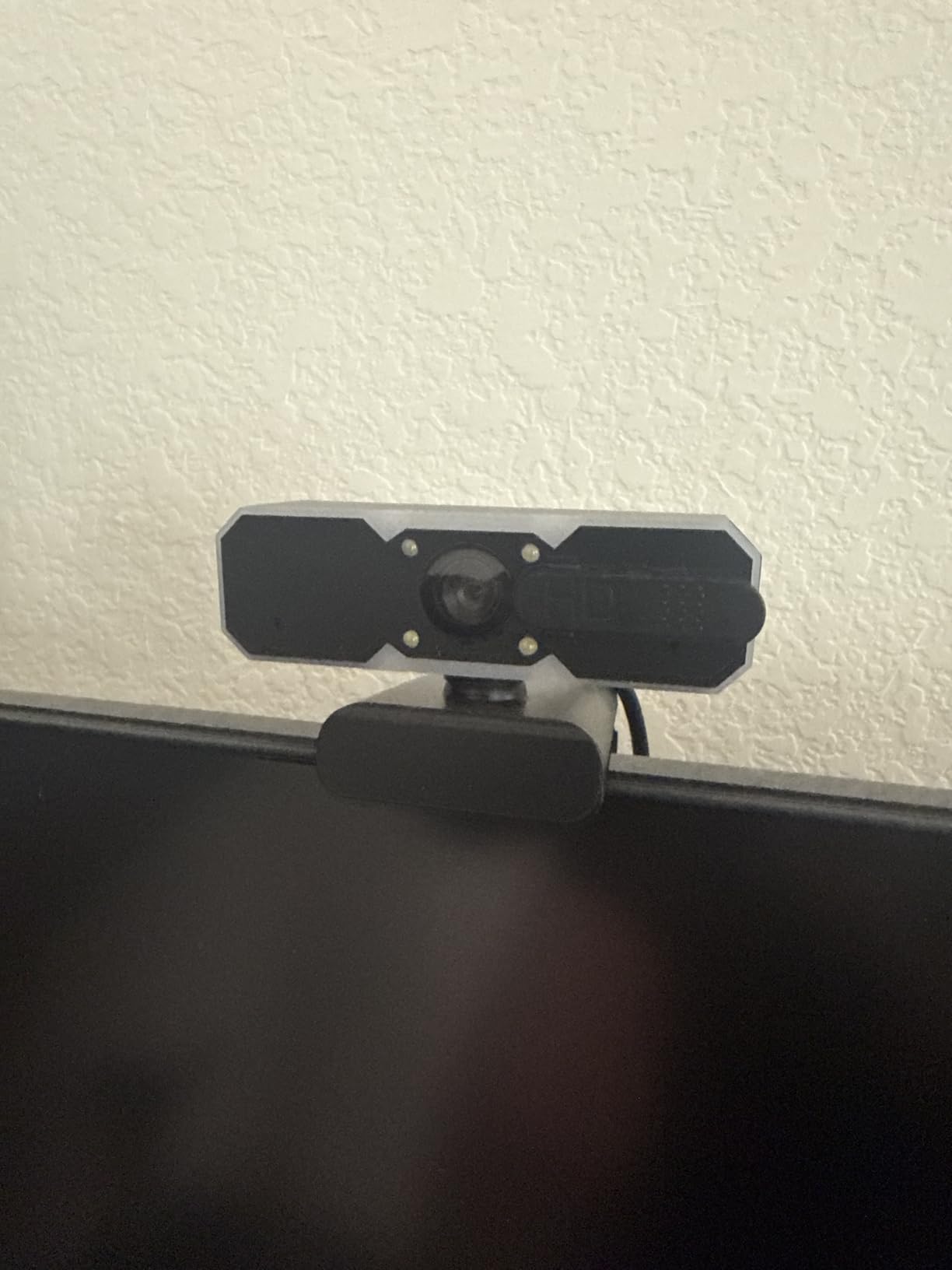
The NBPOWER stands apart from the other budget options because it has a light built in. The fill light and RGB illumination genuinely improve usability in a dim room, which is exactly the condition that makes most cheap webcams produce a grainy, unusable picture. If your streaming space is dark and you want to avoid buying a separate light, this is the camera to look at.
Face autofocus holds focus on moving subjects while outputting 1080p, and the 1.7 m braided cable means you can position the camera properly instead of draping it over a monitor edge. It works with Zoom, YouTube, OBS, Teams and Skype on both Mac and Windows with no driver download.
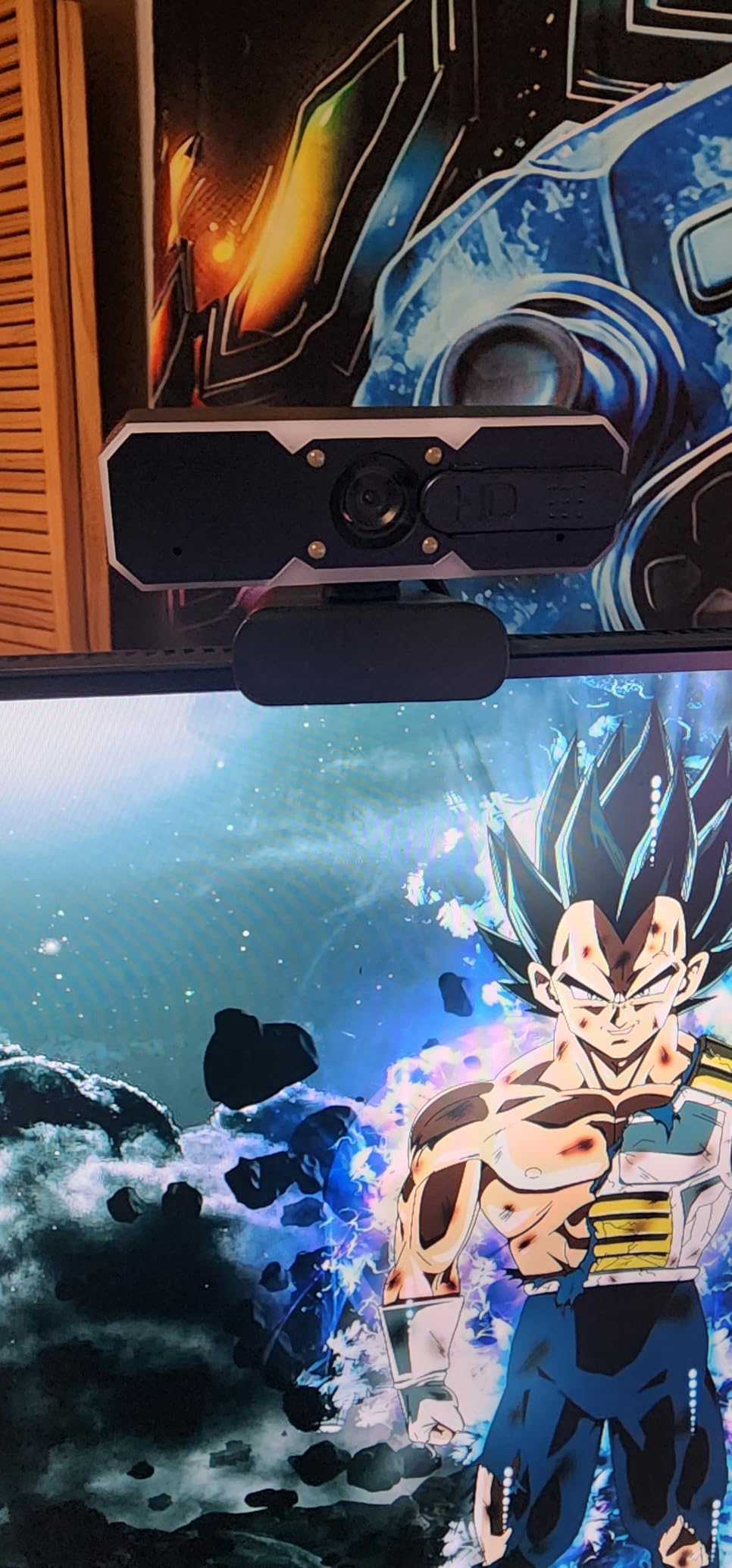
The most-cited complaint concerns frame rate. Some users report real capture falling well short of the advertised 60 fps, with motion trailing as a result. Treat the 60 fps claim as a ceiling rather than a guarantee, and check it in your own capture software before building a segment style around smooth motion.
The second issue is exposure. The image runs very bright in a well-lit room and performs better in dim conditions, which is the opposite of the usual pattern. That makes this camera a poor match for a bright home office but a reasonable one for a darker bedroom setup.
Where the fill light earns its place
A ring light or key light beside a monitor will produce a better picture than any built-in lamp, because it puts light where it needs to be. But it also costs money and takes desk space, and for a first stream the built-in fill is a cheaper way to test whether lighting is your limiting factor at all.
The dual noise-canceling microphone and the physical privacy cover are useful additions at this price, even though the microphone itself is basic.
What to watch out for
The RGB lights are decorative. They do not sync to Chroma or AuraSync, there is no control software for them, and the front-facing LEDs have no diffuser, so they can be harsh on camera and distracting on stream.
If you want a camera that documents its resolution modes and honours them, the EMEET S600 does both 1080p60 and 4K from a named Sony sensor.
10. Acer 4K Webcam: Best Metal-Built Streaming Webcam
Acer 4K Webcam for PC/Mac with All-Metal Unibody Sculpted, Sony 1/2″ Sensor, PDAF, 2 Noise Reduction Mics, Privacy Cover for Switch 2/Zoom/Teams/Facetime/YouTube/Google Meet
Sony 1/2 inch sensor
CNC aluminum body
PDAF autofocus
Magnetic privacy cover
Pros
- Sharp 4K detail from a large sensor
- All-metal body dissipates heat for long sessions
- Fast accurate PDAF autofocus
- 57 g and genuinely portable
Cons
- Detachable magnetic lens cover is easy to lose
- Clip mount needs care on thin laptop screens
- Picture needs tuning out of the box
The CNC-machined aluminum unibody dissipates heat so it stays stable through long sessions, and the 1/2 inch Sony sensor produces a sharp, vibrant image with balanced, true-to-life colour even in low light.
Reviewers single out the picture quality and the autofocus, which is described as quick, accurate and stable rather than merely adequate. The dual high-sensitivity microphones pick up voice clearly from up to about 2.5 meters, which covers a streamer who sits well back from the desk.
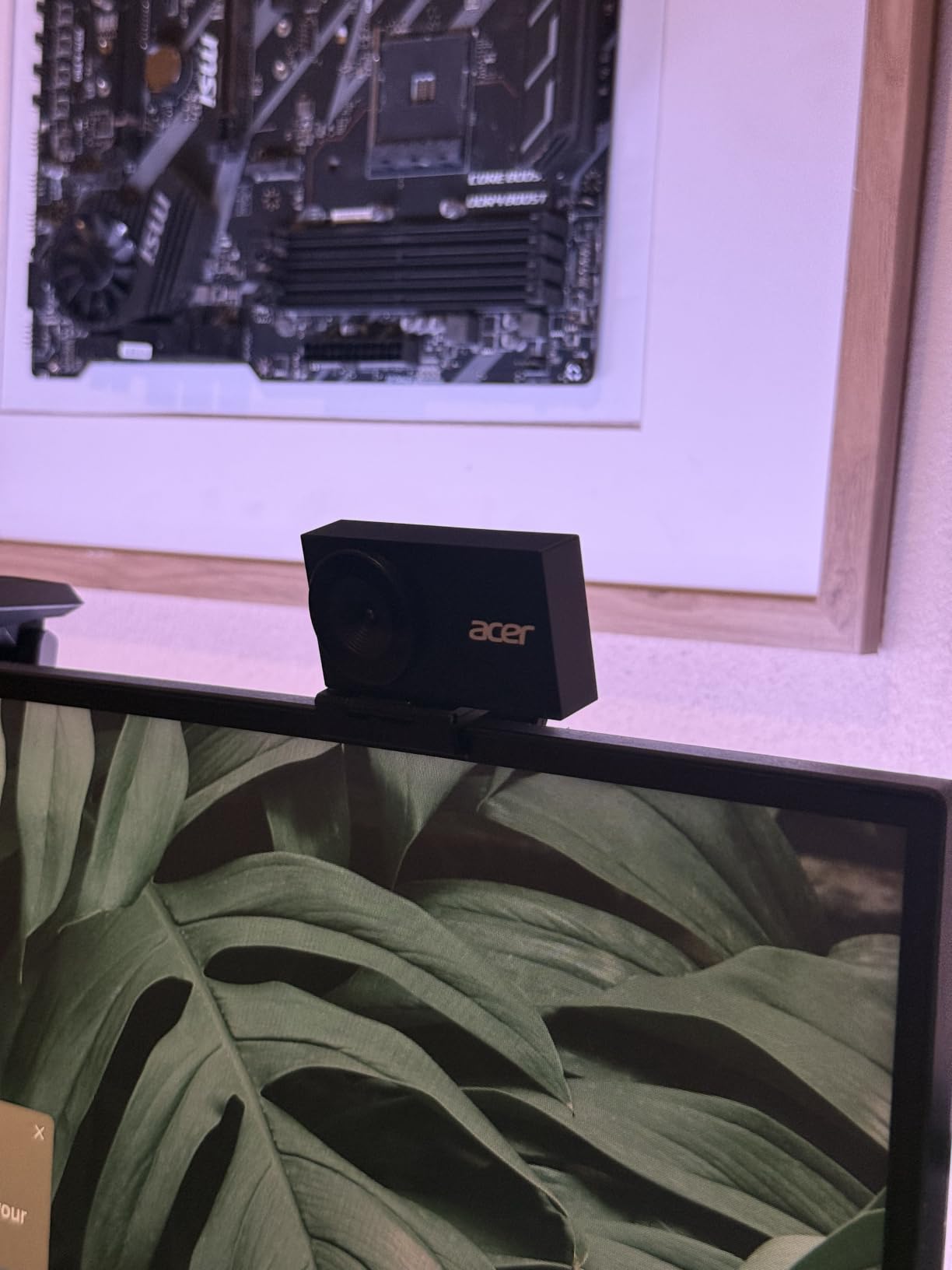
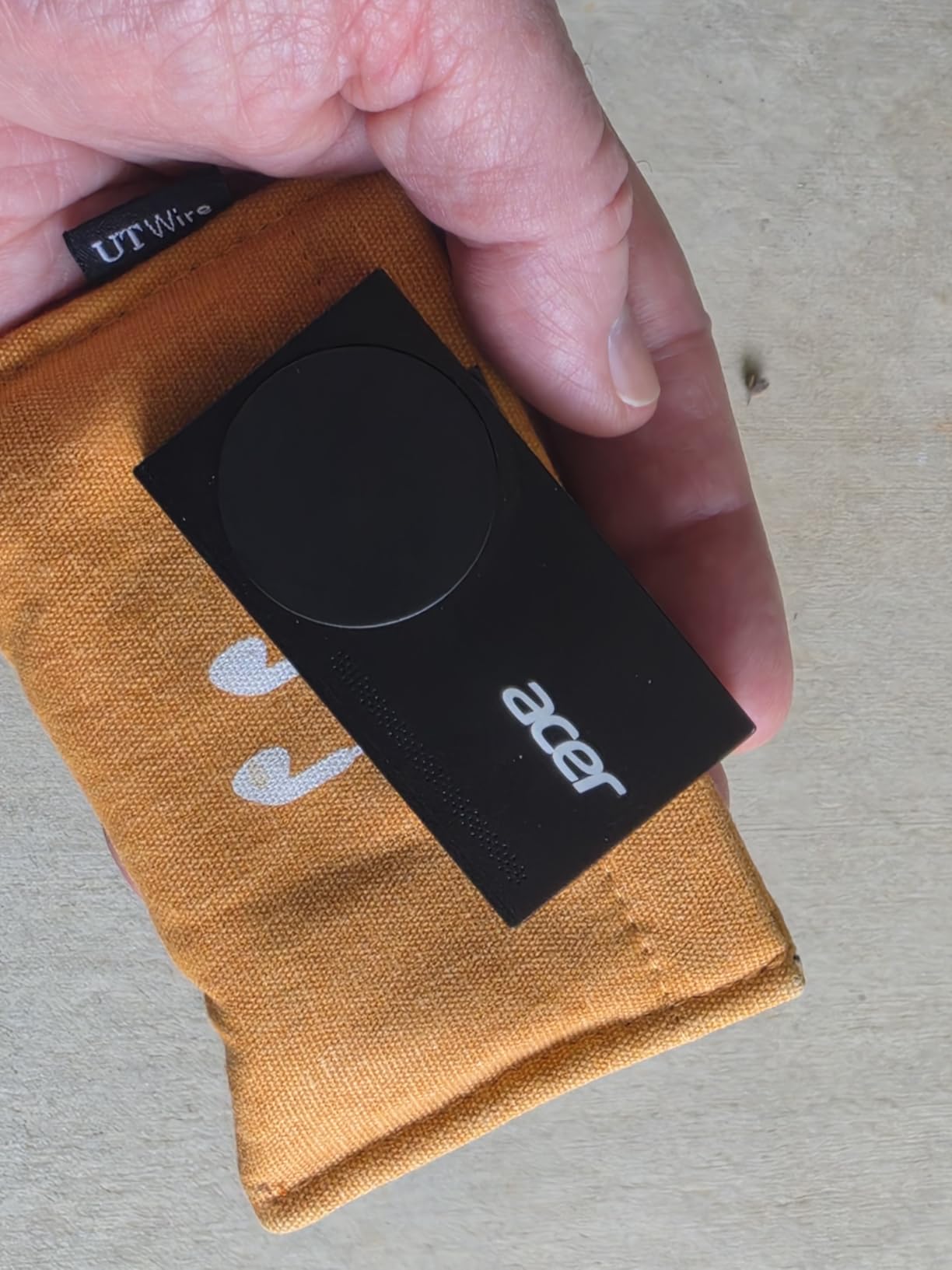
At 57 g, the body is earbud-sized, so it disappears on a monitor or a laptop lid. The single USB-C cable includes an adapter for USB-A ports, and no drivers or companion app are required for basic operation, which keeps the first stream simple.
The magnetic privacy cover uses twelve built-in magnets and clicks firmly into place, which gives real confidence in a shared space. Magnetic does mean it is a separate piece that can go missing, so find a home for it the day it arrives.
Why a metal body matters on stream
Plastic bodies insulate heat inside the enclosure, and a webcam that throttles mid-broadcast drops frame rate at the worst possible moment. Reviewers report that the aluminium construction stays cool during long calls, which removes that failure mode from the list of things to worry about.
It also works with Windows, Mac and ChromeOS, and with Switch 2.
Where it is not the finished answer
Reviewers commonly note that audio and video need tuning out of the box for the best results, so expect to spend a few minutes on exposure rather than streaming immediately.
The clip mount takes some lining up on a thin laptop screen, and this is a smaller-volume listing, so there is less long-term owner feedback behind it than behind the Logitech and EMEET models.
11. Logitech Brio 101: Best Starter Webcam for First-Time Streamers
Logitech Brio 101 Full HD 1080p Webcam for Streaming and Meetings – Black
1080p fixed focus
60 degree FOV
Sliding privacy cover
Built-in mic
Pros
- Sharp 1080p for calls and first streams
- Sliding privacy cover included
- RightLight auto-light balance lifts brightness
- Plug-and-play with a built-in USB-A cable
Cons
- Fixed focus with no optical zoom
- Grainy in low light
- Auto light compensation can overexpose the subject
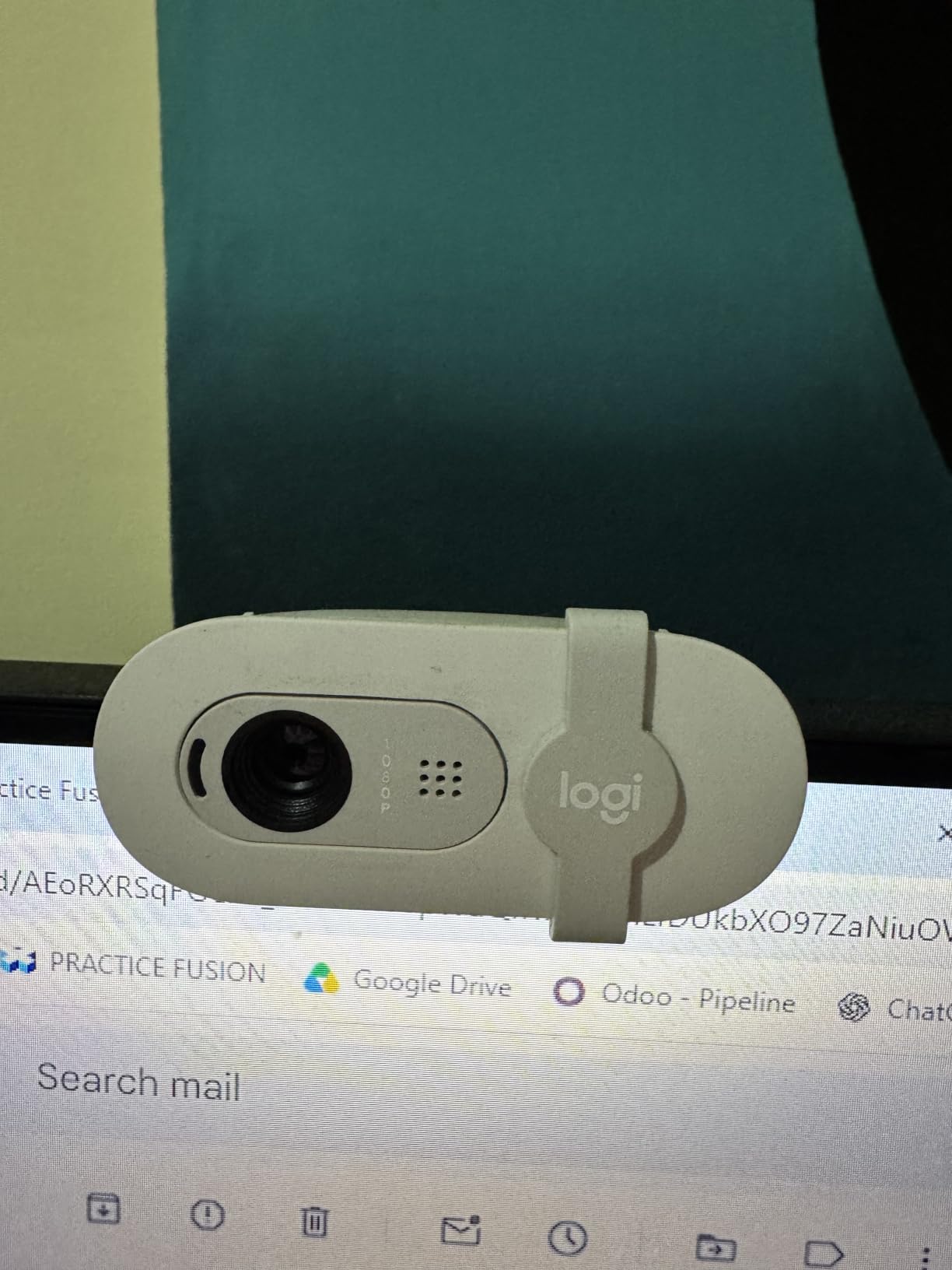
The Brio 101 is the camera to buy if you are testing whether streaming is something you want to do. It costs little, the 1080p picture is sharp in good light, and setup is genuinely plug-and-play with a built-in USB-A cable and no software required for basic use.
The sliding privacy cover is a genuine plus at this end of the market, where most rivals omit it entirely. The built-in microphone is clear enough for calls and short segments, so a first stream does not force you to buy audio hardware on the same day.
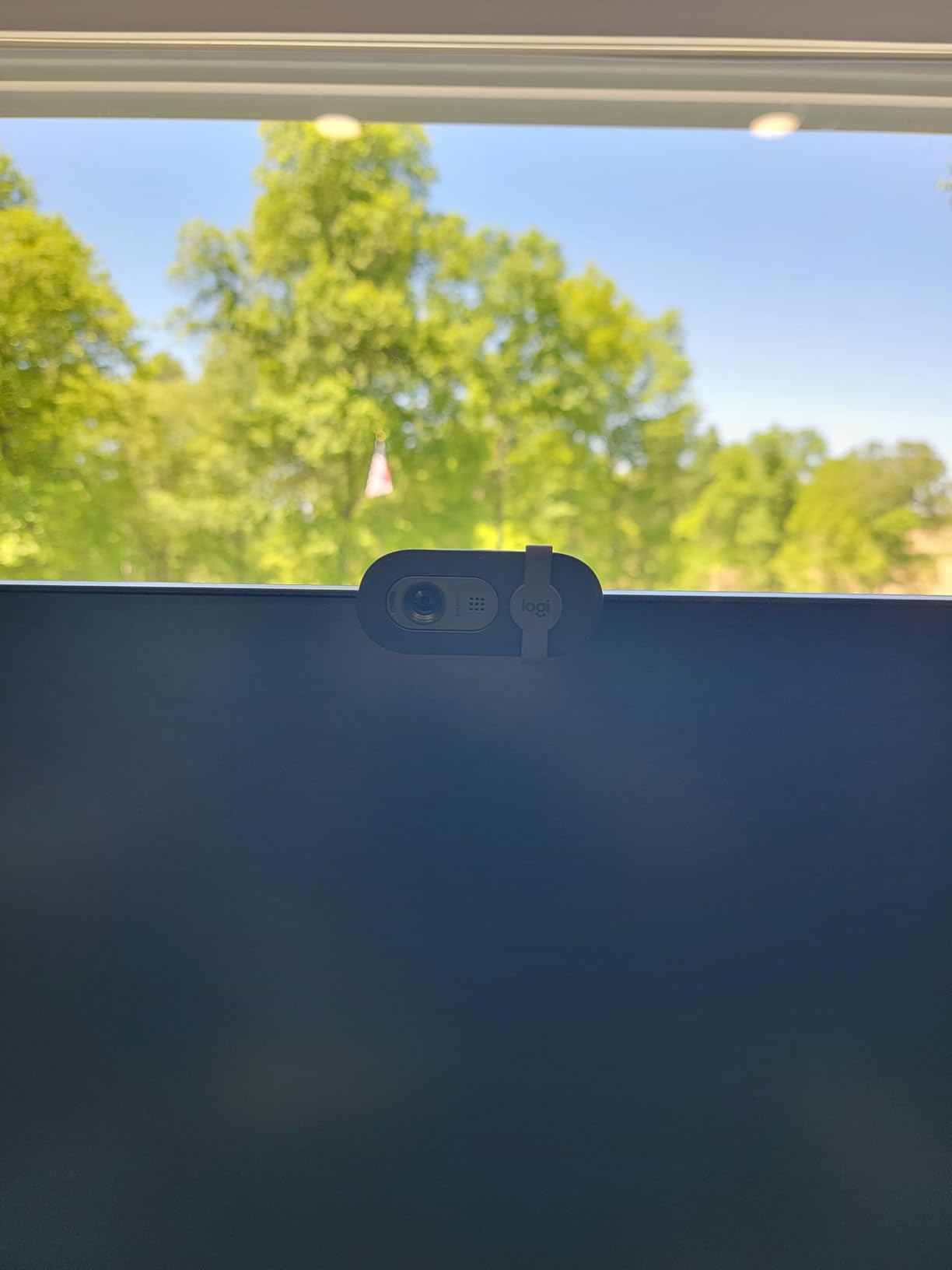
RightLight auto-light balance boosts brightness by up to 50 percent to lift shadows, which rescues a dim corner of a room better than most budget cameras manage.
The body is compact and light, and the integrated stand lets it sit on a desk or clip to a monitor without extra hardware. Multiple colour options are available to match a setup.
Understand the fixed lens first
This is a fixed-focus camera with a 60 degree field of view and no optical zoom. That narrower view is actually an advantage for a face cam because it crops out the room, but the fixed focus means you must place the camera at the right distance by hand. Sit too close and your head fills the frame.
Owners often solve that by pushing the camera further back, so plan your mounting position before you unbox it.
When to move up instead
The image gets grainy in low light, and the auto light compensation can overexpose you as you turn toward the brighter part of the room. If your space is dim, the Acer 4K or either EMEET model handles the same situation noticeably better.
The Logi Options+ app is needed for meaningful image control, and the mount can overlap a small part of a compact screen.
12. AOC 4K Webcam: Best for Wide Group Shots
AOC 4K Webcam for PC, Streaming Computer Camera with Noise-Canceling Mic
4K Ultra HD
80-90 degree FOV
Sliding lens cover
360 degree swivel
Pros
- 4K output at an entry price
- Wide field of view fits several people
- Physical sliding lens cover
- 180 degree tilt and 360 degree swivel
Cons
- Sensor type is not specified
- Digital zoom only
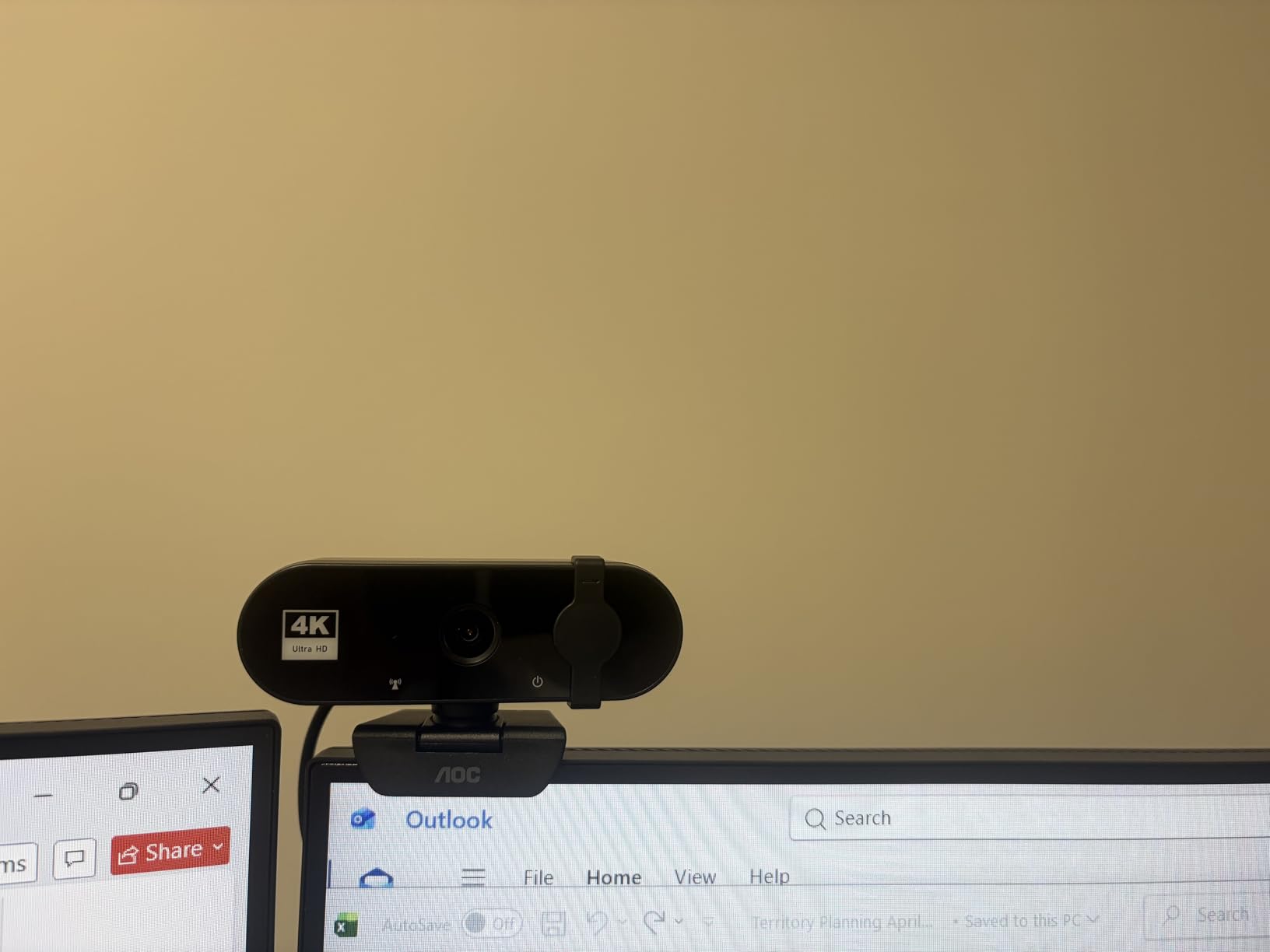
The AOC AC310 is the pick when you need more than one person in frame, because its 80 to 90 degree field of view is the widest here. That extra coverage suits a shared desk, a two-host show, or a streamer who wants viewers to see the whole room rather than a tight head-and-shoulders crop.
It runs at 4K Ultra HD with true plug-and-play behaviour and no drivers, so it works on Zoom, Teams and Skype without a setup detour. The physical sliding lens cover, automatic light correction and the included USB-A to USB-C adapter are the most frequently cited practical benefits.
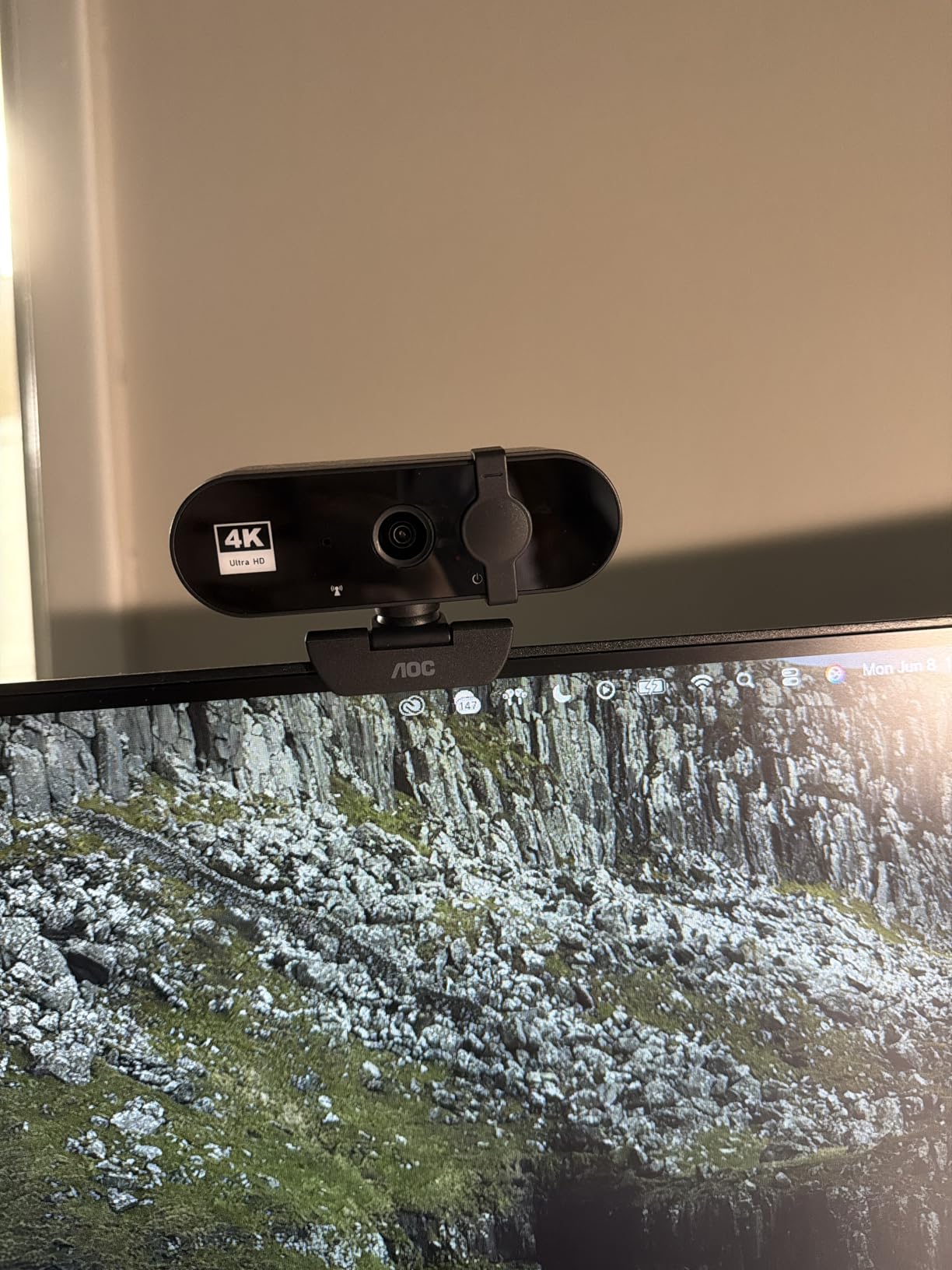
Mounting is flexible: 180 degree tilt and 360 degree swivel let you place it on a monitor, a desk or a tripod, and the wide lens keeps several people in shot without anyone sitting at an awkward edge of the frame.
A built-in noise-reducing microphone handles voice for calls and short segments. As with other cameras at this end of the market, you would add a dedicated mic for serious talking-head content.
When a wide lens is the right call
A group stream, a co-working or co-host format, or a whiteboard-heavy show all benefit from the extra coverage. It also gives you room to wave a second item into frame without leaning back, which is awkward on a 60 degree lens.
The trade is facial distortion. Very wide lenses bend features near the edges of the frame, so people sitting far from centre will look stretched, and that is why this model sits lower in the ranking rather than higher.
What the spec sheet does not tell you
The sensor type is not specified, and the zoom is digital only, so any crop happens in software rather than optically. As a newer listing, long-term owner feedback is thinner than for the Logitech and EMEET models.
If you want a tight single-person shot instead, the Logitech C920x HD Pro is the safer first choice.
How to Set Up a Streaming Webcam in OBS Studio?
A webcam is a standard UVC camera, so OBS recognises it as a video capture device with no drivers and no capture card. That simplicity is the reason most people start here rather than with a mirrorless body.
The workflow runs in five steps. First, plug the camera into a USB port on the motherboard rather than a hub, since bandwidth contention with your game capture is a documented cause of lower in-game frame rates while streaming. Second, in OBS add a Video Capture Device source and pick the camera. Third, set the resolution and frame rate to match what the camera supports, then apply your streaming service’s recommended bitrate rather than a higher number.
Fourth, lock the settings you care about. Manual exposure and white balance beat automatic ones for a consistent image across a whole broadcast, and on cameras that keep settings across reboots such as the Elgato Facecam MK.2 you only do this once. Fifth, mount the camera at eye level. A clip that sits on top of a monitor already does most of this for you, and a small riser on a desk gets you the rest.
One more detail for face cam work. If you crop a 4K capture down to a small corner box, check the resulting sharpness on a monitor rather than a laptop screen, where the smaller panel hides artefacts.
How to Choose a Streaming Webcam
Resolution versus frame rate. Twitch and YouTube cap the outbound feed at 1080p, so 1080p60 is the mode your viewers actually receive. 4K earns its place when you record locally in 4K and crop a tighter face cam, because a downscaled 4K frame holds more detail than a native 1080p one. If you only stream, prioritise frame rate.
Frame rate. Thirty fps is acceptable for a static talking-head shot. Sixty fps makes expressive hand movement and any fast on-camera motion read as smooth, and it is the difference the StreamCam and OBSBOT Tiny SE exist to provide. Above 60 fps the gain is mostly in post-production rather than on stream.
Sensor size. A larger sensor gathers more light, which is what determines low-light quality before any software processing kicks in. The 1/2 inch sensors in the Insta360 Link 2, the OBSBOT Meet 2 and the Acer 4K are the largest here, and the difference shows in a dim room.
Field of view. Around 70 to 80 degrees suits a seated face cam. Very wide lenses fit groups but bend features near the frame edges, which is the distortion streamers complain about most. Narrower fixed lenses such as the Brio 101’s 60 degrees crop out the room but require careful mounting distance.
Autofocus. Phase detection autofocus, which the EMEET models and the Acer 4K use, snaps into focus faster and steadier than contrast-based systems. For a streamer who leans and moves, reliable focus matters more to viewers than any resolution increase. Fixed-focus cameras force you to choose the right distance by hand.
Low light and lighting. Any webcam improves with a light in front of you. Monitor bias lighting behind the display helps the background, while a key light or ring light at roughly eye level shapes the face. Cameras with automatic light adjustment such as the EMEET S600 and the Acer 4K recover more from a dim room than fixed-exposure models, but no sensor replaces a light source.
Microphones. Several cameras here ship with dual noise-canceling microphones that are fine for calls and short segments. If you stream talking-head content regularly, plan on a separate microphone regardless, and note that the Elgato Facecam MK.2 includes none at all.
Mount type. Monitor clips need a thin enough bezel and can overlap part of a compact screen. A tripod thread gives you more height options, and the EMEET NOVA and the AOC 4K both offer 360 degree swivel plus a tripod nut.
Privacy shutter. A physical cover matters in a shared home. The Facecam MK.2, both EMEET models, the Acer 4K, the AOC 4K and the Logitech Brio 101 include one; the C920x does not.
Companion software. Tracking, HDR toggles and manual controls usually live in a desktop app, and some suites are thin on Linux support. If you stream from Linux, favour a camera that delivers its core function over standard UVC without an app.
Streaming Webcam vs Capture Card vs Mirrorless Camera
Forum threads arguing this question fill page one for a reason, and the honest answer is that a mirrorless body wins on image quality. A Sony Alpha ZV-E10 or a Canon EOS Rebel pushed through an HDMI capture card gives you a larger sensor, a real lens, and control over depth of field that no webcam in this list matches. Several posters on streaming forums describe exactly that route as the reason they never bought a webcam.
The trade is everything around the camera. A capture card setup means a second body, a lens, a power supply, a clean HDMI output and a card you configure for the resolution and frame rate your platform accepts. It is more hardware, more setup time and more that can fail during a live broadcast. A webcam is one cable and one source in OBS.
Our practical split: use a webcam for a face cam, for a talking-head overlay and for calls. Use a capture card with a mirrorless body when the camera itself is the content and you can afford the setup time. Use a capture card alone when you want to capture a console or a second PC.
One middle option deserves mention. Some streamers mount a secondary display or use browser-based video routing to build a scene without extra hardware, which answers the eye-contact problem that a monitor-top clip creates.
Frequently Asked Questions
What webcam do most streamers use?
Most established streamers do not use a webcam at all, and instead run a mirrorless or DSLR body through an HDMI capture card for a better picture. Among people who do use webcams, the Logitech C920x generation is the most common baseline because it is dependable and widely available, while 1080p60 models lead among creators who move on camera. The honest answer is that a webcam wins on simplicity and a camera wins on image quality.
Is a webcam good enough for streaming?
For a face cam overlay, a talking-head segment and calls, yes. Any of the 1080p models in this guide produces a picture your viewers accept, and the Logitech C920x HD Pro runs all night without attention. A webcam stops being enough when the camera itself is the content, such as a full-screen talking-head show where the image quality is the product. In that case a mirrorless body through a capture card is worth the extra setup.
Which webcam is better, 1080p or 4K?
For streaming only, 1080p60 is better because Twitch and YouTube cap the outbound feed at 1080p, so the extra 4K detail never reaches your viewers. 4K pays off when you record locally at the same time and want to crop a tight face cam, because a downscaled 4K frame retains more detail than a native 1080p one. Choose 4K if you publish video as well as stream; choose 1080p60 if streaming is all you do.
Which webcam has the best autofocus for streaming?
The phase detection autofocus models are the strongest here, because phase detection locks focus faster and steadier than contrast-based systems. The EMEET NOVA, the EMEET S600 and the Acer 4K all use phase detection, and reviewers describe the S600 focus as consistently fast and stable. The Elgato Facecam MK.2 adds manual focus control on top, which is the most reliable option of all once you set it.
Which webcam is best for low-light performance?
Sensor size decides most of it, and the 1/2 inch sensors in the Insta360 Link 2, the OBSBOT Meet 2 and the Acer 4K gather the most light. The Elgato Facecam MK.2 is also praised for avoiding the muddy look small sensors produce in dim rooms, and the EMEET S600 balances shadows and highlights automatically. All of them improve further with a light in front of you, which no sensor replaces.
Do I need a webcam or a capture card?
Use a webcam for a face cam, a talking-head overlay or calls, because it is one cable and one source in OBS with no setup. Use a capture card when you already own a camera body, when you want to capture a console, or when the camera is the content and image quality justifies a second body and a lens. A capture card alone adds nothing to a webcam, so do not buy one to improve a webcam feed.
The Best Webcam for Streaming
If you buy only one of these, take the Logitech C920x HD Pro. It is the best webcam for streaming overall in 2026 because it needs no setup, focuses reliably and holds a clean 1080p picture in ordinary room light, which is the situation most viewers will actually watch it in.
Add the Logitech StreamCam when smooth motion on a large face cam matters to you, the Insta360 Link 2 when you want 4K with motorized tracking, and the EMEET NOVA when 4K detail matters more than frame rate. Whichever you pick, add a light before you add anything else, and mount the camera at eye level.